> ## Documentation Index
> Fetch the complete documentation index at: https://docs.supaboard.ai/llms.txt
> Use this file to discover all available pages before exploring further.
> Connect external services and choose the tools your agents may use.
# MCP & Tools
MCP connections let an agent use an external service while working on a task. A server can provide several tools, such as searching documents or looking up a record. You choose the connection, authorization, and tools available to the agent.
For asking Supaboard questions from another app, see [Claude](/analyst/integrations/connect-supaboard-to-claude) or [Slack](/analyst/integrations/connect-supaboard-to-slack).
## Before you begin
You need access to **Settings → MCP & Tools** and permission to add connections. For a custom server, obtain its MCP endpoint, transport, and authentication requirements from its administrator. An ordinary website URL or REST API URL is not necessarily an MCP endpoint.
## The MCP & Tools Page
Open **Settings → MCP & Tools**. The list shows your available connections and their status. Open a connection to inspect its tools and usage history.
### Display modes
Use the grid or table view to browse connections.
### Search
Search by connection name when the list grows.
### Refresh
Use **Refresh** to reload the list or a server's tools after a configuration change.
## Adding a Tool
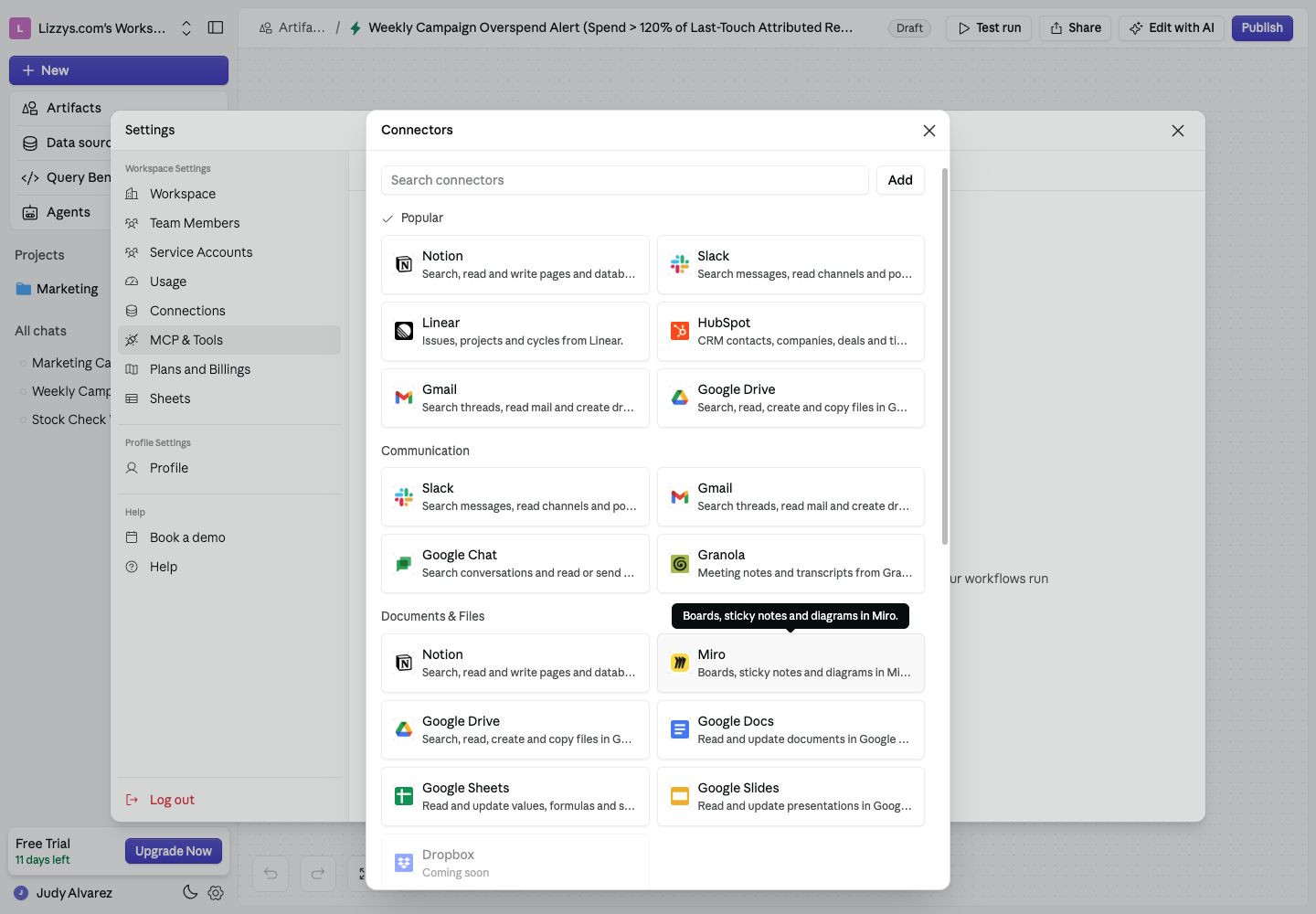
Choose **New Tool**, or **Add First Tool** in an empty workspace. The **Connectors** catalog opens. Pick the service you want and follow its connection flow, or choose **Add** to open **Custom MCP server**.
 ### Required fields
For a custom server:
1. Give it a recognizable **Name**.
2. Enter its MCP endpoint under **Connection**.
3. Select **Streamable HTTP** or **SSE** to match the server.
4. Choose **Authentication**: **None**, **API token**, or **OAuth**.
5. Complete the required authentication details, review the acknowledgement in the form, and choose **Create**.
### Optional fields
Use **Description** to explain when the agent should use the connection. You can also choose an icon. OAuth servers can require advanced settings supplied by the provider, such as a client ID, client secret, or scopes. Copy the callback URL shown by Supaboard when configuring that provider.
### What happens when you save
The connection is added and its status indicates whether it is ready. For OAuth, complete the provider's authorization step. If you skip or cancel sign-in, the connection still needs authorization before it can be used.
For API-token authentication, the token is sent as a Bearer credential and is stored server-side. Use the connection's edit or credentials controls when it needs updating.
## Transport Types: HTTP vs SSE
| Transport | Choose it when |
| - | - |
| **Streamable HTTP** | The MCP server supplies a Streamable HTTP endpoint |
| **SSE** | The MCP server supplies an SSE endpoint |
Use the server provider's documented transport and URL. Choosing a transport does not turn an unrelated HTTP endpoint into an MCP server.
## Tool Detail & Execution History
The connection detail page has expandable **Tools** and usage-history sections.
### Choose the tools agents can use
Review each tool's description. Switch off tools that should not be available to the agent. A disabled tool is excluded from its available tool list.
If the server cannot be reached, Supaboard may show its last known tool list with a warning. Refresh it after resolving the connection issue.
### Review usage history
Open a history entry to inspect the invocation and its result. Use this when checking whether the agent called the expected tool and whether it succeeded. Do not treat an old successful call as confirmation that the connection is working now.
## Testing Connectivity
Open the connection's action menu and choose **Test Connectivity**. Read the success or error message. If it fails, check the endpoint, authorization, and server availability.
A successful connectivity check confirms the connection can be reached; it does not validate every action exposed by the server.
## Access Control
For connections that support sharing, use **Access Control** to choose which workspace members may use them, then save the changes. Personal connectors act under the account that authorized them and do not offer this sharing action.
A teammate also needs the appropriate workspace feature access. The external service's permissions continue to apply.
## Use the connection in a chat
Open [the Analyst](/analyst/overview), use the **+** menu, and select the connected tool. Ask a specific question that needs that service. Review the tool's result and any action requesting approval.
## Deleting a Tool
Choose **Delete Tool** from the action menu and read the confirmation. Deleting removes the connection and its usage history; agents using it lose access to its tools.
## Permissions
Your workspace's **MCP and Tools** feature access controls whether this section is available. Management controls also depend on your role and the connection. Ask an administrator if a required action is missing.
## Expected result
The connection is authorized, the intended tools are enabled, and the agent can use it in a relevant chat. Return to its history to investigate failures or unexpected results.
## Next steps
[Set up an agent](/agents/set-up-an-agent) or [ask the Analyst](/analyst/overview) using the new connection.
This documentation is built and hosted on [Mintlify](https://mintlify.com), a developer documentation platform.
### Required fields
For a custom server:
1. Give it a recognizable **Name**.
2. Enter its MCP endpoint under **Connection**.
3. Select **Streamable HTTP** or **SSE** to match the server.
4. Choose **Authentication**: **None**, **API token**, or **OAuth**.
5. Complete the required authentication details, review the acknowledgement in the form, and choose **Create**.
### Optional fields
Use **Description** to explain when the agent should use the connection. You can also choose an icon. OAuth servers can require advanced settings supplied by the provider, such as a client ID, client secret, or scopes. Copy the callback URL shown by Supaboard when configuring that provider.
### What happens when you save
The connection is added and its status indicates whether it is ready. For OAuth, complete the provider's authorization step. If you skip or cancel sign-in, the connection still needs authorization before it can be used.
For API-token authentication, the token is sent as a Bearer credential and is stored server-side. Use the connection's edit or credentials controls when it needs updating.
## Transport Types: HTTP vs SSE
| Transport | Choose it when |
| - | - |
| **Streamable HTTP** | The MCP server supplies a Streamable HTTP endpoint |
| **SSE** | The MCP server supplies an SSE endpoint |
Use the server provider's documented transport and URL. Choosing a transport does not turn an unrelated HTTP endpoint into an MCP server.
## Tool Detail & Execution History
The connection detail page has expandable **Tools** and usage-history sections.
### Choose the tools agents can use
Review each tool's description. Switch off tools that should not be available to the agent. A disabled tool is excluded from its available tool list.
If the server cannot be reached, Supaboard may show its last known tool list with a warning. Refresh it after resolving the connection issue.
### Review usage history
Open a history entry to inspect the invocation and its result. Use this when checking whether the agent called the expected tool and whether it succeeded. Do not treat an old successful call as confirmation that the connection is working now.
## Testing Connectivity
Open the connection's action menu and choose **Test Connectivity**. Read the success or error message. If it fails, check the endpoint, authorization, and server availability.
A successful connectivity check confirms the connection can be reached; it does not validate every action exposed by the server.
## Access Control
For connections that support sharing, use **Access Control** to choose which workspace members may use them, then save the changes. Personal connectors act under the account that authorized them and do not offer this sharing action.
A teammate also needs the appropriate workspace feature access. The external service's permissions continue to apply.
## Use the connection in a chat
Open [the Analyst](/analyst/overview), use the **+** menu, and select the connected tool. Ask a specific question that needs that service. Review the tool's result and any action requesting approval.
## Deleting a Tool
Choose **Delete Tool** from the action menu and read the confirmation. Deleting removes the connection and its usage history; agents using it lose access to its tools.
## Permissions
Your workspace's **MCP and Tools** feature access controls whether this section is available. Management controls also depend on your role and the connection. Ask an administrator if a required action is missing.
## Expected result
The connection is authorized, the intended tools are enabled, and the agent can use it in a relevant chat. Return to its history to investigate failures or unexpected results.
## Next steps
[Set up an agent](/agents/set-up-an-agent) or [ask the Analyst](/analyst/overview) using the new connection.
This documentation is built and hosted on [Mintlify](https://mintlify.com), a developer documentation platform.