> ## Documentation Index
> Fetch the complete documentation index at: https://docs.supaboard.ai/llms.txt
> Use this file to discover all available pages before exploring further.
# Managing chats
> Find earlier conversations, keep useful chats close, and share your work.
Chats preserve your questions and the Analyst's answers so you can continue an investigation later.
## Before you begin
You can open chats shared with you or accessible through a project. **Can view** lets you read; **Can chat** lets you ask follow-up questions. The creator manages renaming, moving, sharing, and deletion.
## Find a conversation
1. Open **All chats** in the sidebar.
2. Search for words from the chat title, your questions, or the answers.
3. Use ownership and project filters to narrow the results, then open the chat.
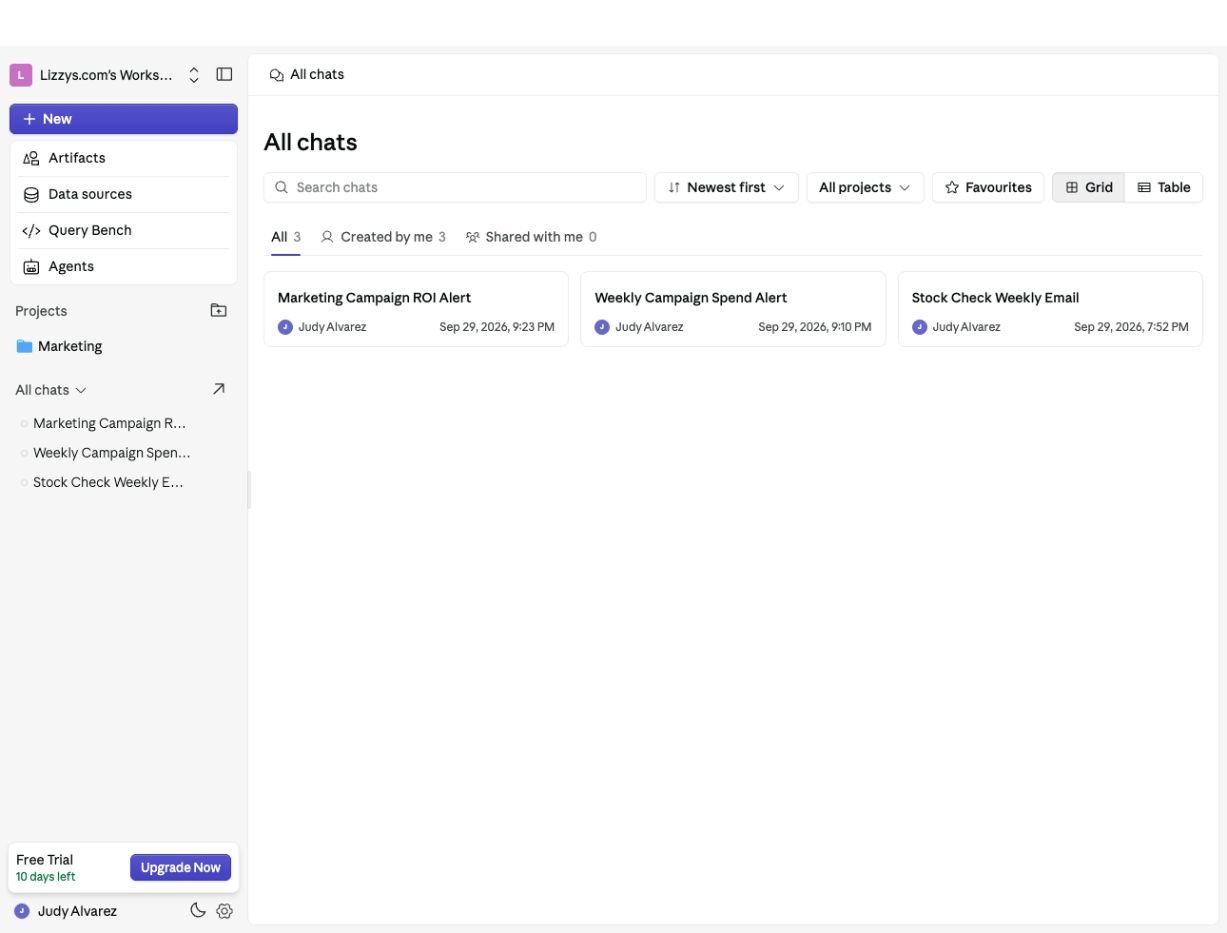 Use **Pinned** for pinned conversations. Chats assigned to a project appear in its **Chats** tab; select the project filter when looking for them in All chats. The default All chats list leaves out project chats and pinned chats to avoid repeating those lists.
## Start a new chat
Click **New** in the sidebar. Inside a project, the new conversation is associated with that project. A separate chat is useful when you move to a different task or audience.
## Pin, favorite, or organize
Open the chat's **⋯** menu:
* **Pin** keeps it in Pinned; **Unpin** removes it from that list.
* Use the favorite action to mark a useful conversation, then filter for favorites in the library.
* Use the project action to file a chat with related work. Destinations depend on your permissions.
Use **Pinned** for pinned conversations. Chats assigned to a project appear in its **Chats** tab; select the project filter when looking for them in All chats. The default All chats list leaves out project chats and pinned chats to avoid repeating those lists.
## Start a new chat
Click **New** in the sidebar. Inside a project, the new conversation is associated with that project. A separate chat is useful when you move to a different task or audience.
## Pin, favorite, or organize
Open the chat's **⋯** menu:
* **Pin** keeps it in Pinned; **Unpin** removes it from that list.
* Use the favorite action to mark a useful conversation, then filter for favorites in the library.
* Use the project action to file a chat with related work. Destinations depend on your permissions.
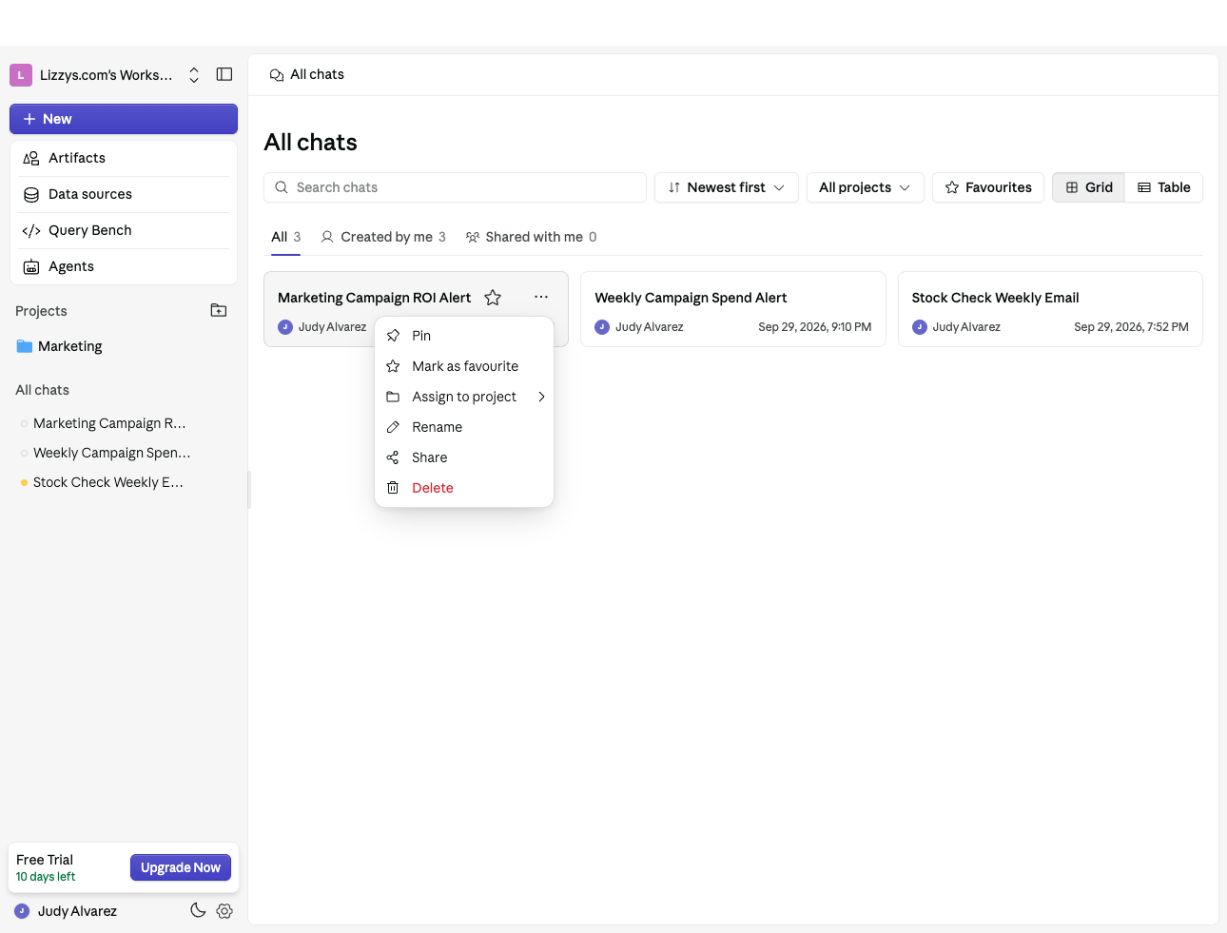 Pinning or favoriting helps you find work again. Check a project's members before adding a chat, because project access can affect who can open it.
## Rename or share
A chat's creator can use **Rename** or **Share** in its **⋯** menu. Sharing is also available from the chat's top bar. Choose **Can view** for reading or **Can chat** for follow-ups. Review the people and link access in the dialog before distributing a link.
If you can read a shared chat but cannot rename it or change sharing, ask its creator. Reading access does not make you the owner.
## Delete a chat
The creator can choose **Delete** and confirm. Read the confirmation carefully: deleting a conversation removes its messages. Use **Unpin** or remove it from a project if you only want to change where it appears.
## Next steps
Continue the conversation, or [create a project](/projects/overview) to keep related work together. Find generated dashboards, sites, automations, and files in [Artifacts](/artifacts/overview).
This documentation is built and hosted on [Mintlify](https://mintlify.com), a developer documentation platform.
Pinning or favoriting helps you find work again. Check a project's members before adding a chat, because project access can affect who can open it.
## Rename or share
A chat's creator can use **Rename** or **Share** in its **⋯** menu. Sharing is also available from the chat's top bar. Choose **Can view** for reading or **Can chat** for follow-ups. Review the people and link access in the dialog before distributing a link.
If you can read a shared chat but cannot rename it or change sharing, ask its creator. Reading access does not make you the owner.
## Delete a chat
The creator can choose **Delete** and confirm. Read the confirmation carefully: deleting a conversation removes its messages. Use **Unpin** or remove it from a project if you only want to change where it appears.
## Next steps
Continue the conversation, or [create a project](/projects/overview) to keep related work together. Find generated dashboards, sites, automations, and files in [Artifacts](/artifacts/overview).
This documentation is built and hosted on [Mintlify](https://mintlify.com), a developer documentation platform.