> ## Documentation Index
> Fetch the complete documentation index at: https://docs.supaboard.ai/llms.txt
> Use this file to discover all available pages before exploring further.
# Ask the Analyst
> Ask questions in plain English, investigate your data, and create useful outputs.
The Analyst is Supaboard's chat experience. An agent answers questions using the data and business context it can access. Answers can include explanations, charts, tables, and files, and you can ask it to build or edit artifacts.
 ## Before you begin
You need workspace and agent access. To ask about live business data, that agent needs the relevant [data sources](/data-sources/overview). Your permissions determine which actions are available.
## Open the Analyst
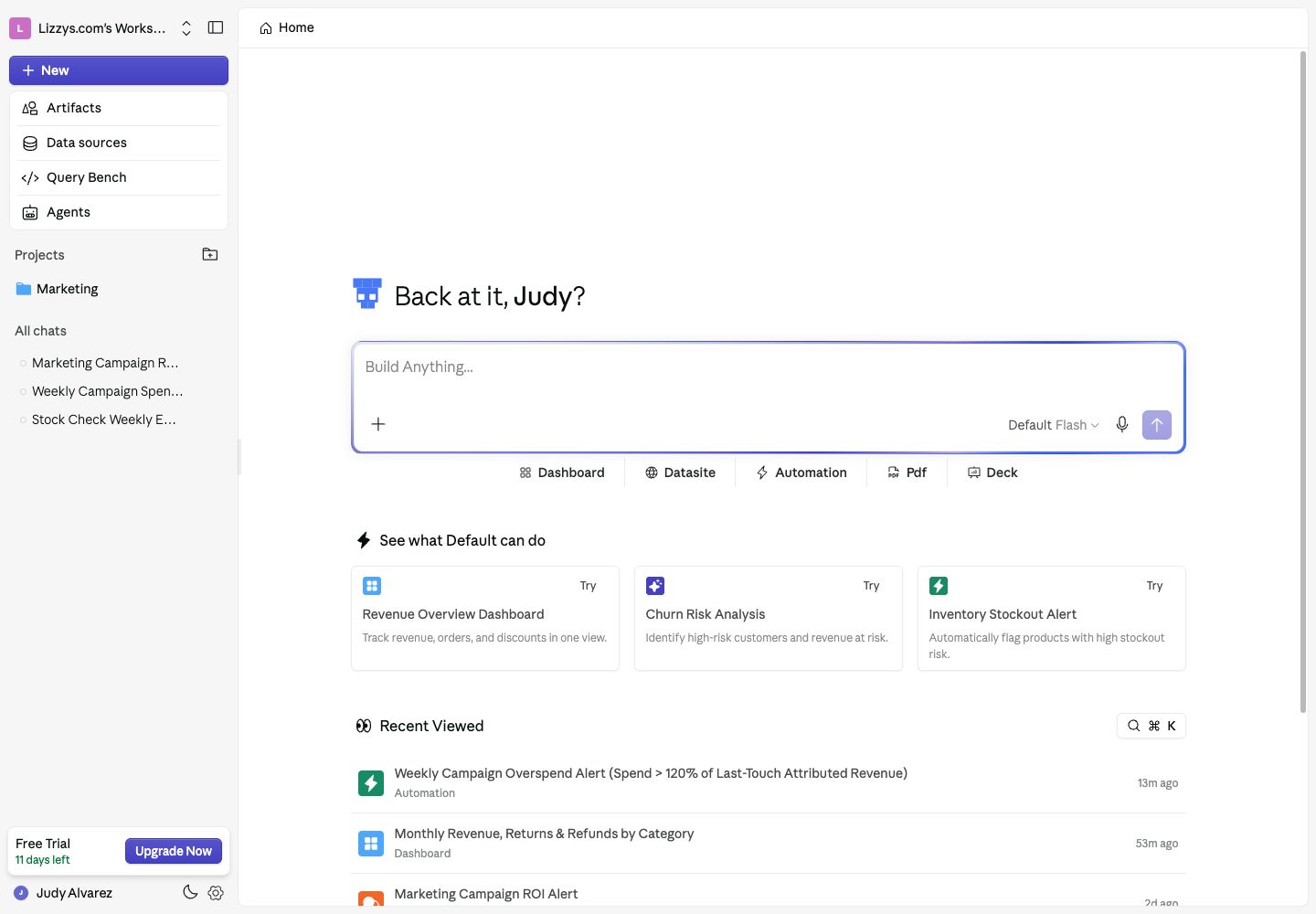
Start on **Home**, or click **New** in the sidebar. If you start from a project, the new chat belongs to that project.
### The empty state
The message box says **Build Anything...**. Ask a question directly or use a **Dashboard**, **Datasite**, **Automation**, **Pdf**, or **Deck** shortcut. These fill in a starting prompt for you to complete; they do not send it immediately.
## Asking a Question
Choose an agent, type your question, and send it. Include the period, metric, and comparison you need: “Compare completed orders this month with last month and explain the biggest changes by region.”
### Choosing an agent
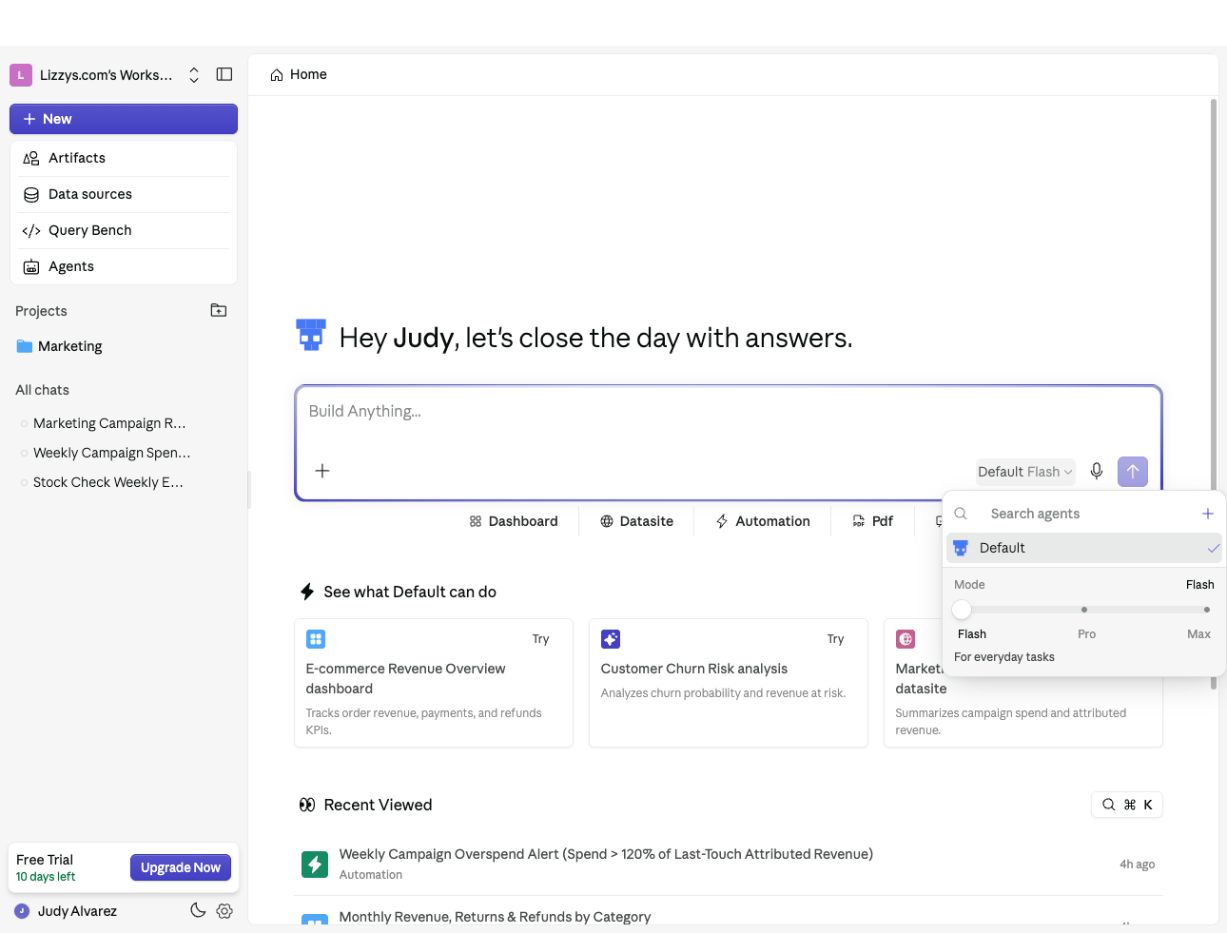
Open the agent picker in the message box. Select the agent whose data scope and knowledge fit the question. You can change agents during a conversation; your selected agent and mode are remembered for the session.
### Query modes
## Before you begin
You need workspace and agent access. To ask about live business data, that agent needs the relevant [data sources](/data-sources/overview). Your permissions determine which actions are available.
## Open the Analyst
Start on **Home**, or click **New** in the sidebar. If you start from a project, the new chat belongs to that project.
### The empty state
The message box says **Build Anything...**. Ask a question directly or use a **Dashboard**, **Datasite**, **Automation**, **Pdf**, or **Deck** shortcut. These fill in a starting prompt for you to complete; they do not send it immediately.
## Asking a Question
Choose an agent, type your question, and send it. Include the period, metric, and comparison you need: “Compare completed orders this month with last month and explain the biggest changes by region.”
### Choosing an agent
Open the agent picker in the message box. Select the agent whose data scope and knowledge fit the question. You can change agents during a conversation; your selected agent and mode are remembered for the session.
### Query modes
 | Mode | Use it for |
| - | - |
| **Flash** | Everyday questions and quick follow-ups |
| **Pro** | Deeper analysis of your data |
| **Max** | Complex tasks that benefit from planning before investigation |
Older guides use **Concise** and **Deep Dive** for the first two modes. The current picker shows **Flash**, **Pro**, and **Max**. Tell the Analyst if you want a short answer or a detailed explanation.
### Voice input
Use the microphone in the message box to dictate instead of typing. Review the text before sending.
### Attachments and tools
Use the **+** menu to add supporting material. Context helps the Analyst understand the files or existing work your question refers to.
#### Files and artifacts
Attach a document, image, or spreadsheet, or select an existing artifact as context. Review the context chips before you send. Follow-up questions can build on the conversation and its attached context.
#### Connected tools
Select connected MCP tools when the task needs information or actions from another service. An administrator can [configure tools](/agents/tools). The connected service's permissions still apply.
## Understanding Responses
The response streams into the chat. Its activity display shows progress, such as work being performed and tools being used. The answer contains the explanation and any supporting visuals or artifacts.
### What an answer can contain
| Result | What you can do with it |
| - | - |
| Explanation | Read conclusions, assumptions, and suggested follow-ups |
| Chart, table, or KPI | Inspect the data and open or edit the visual |
| Artifact card | Open a dashboard, Datasite, automation, or file in a side panel |
| Generated file | Preview and download the output |
### Clarifying questions
The Analyst may ask you to clarify a date range, a definition, or what to build. Answer to continue. When an action requires approval, review the requested action before allowing it.
### The message toolbox
Use a message's controls to copy or share it. A widget has controls including **Open**, **Edit**, and **Pin**, plus a **⋯** menu. Available actions depend on the result and your access.
### Rating an answer
Use **Like** or **Dislike** in a widget's **⋯** menu. If the result is wrong, explain what needs correcting when prompted. Feedback helps improve future answers.
### Platform help
You can also ask how to use Supaboard—for example, “How do I schedule a dashboard report?” See [Understand answers](/analyst/insights-in-ask-agents) for ways to inspect and refine results.
## Pinning Widgets
Choose **Pin** on a useful chart, table, or KPI and select an available destination, such as a [dashboard](/dashboards/overview) or [Datasite](/datasites/overview). You need permission to add content to the destination.
To build a whole output instead, ask “Turn this analysis into a dashboard.” Open the artifact card, inspect it, and request changes in the same conversation.
## Return to your work
Find recent chats in the sidebar, open **All chats**, or use **Pinned** for pinned conversations. Project chats also appear inside their project. Click **New** to start a separate conversation.
For searching, renaming, organizing, and sharing conversations, see [Managing chats](/analyst/managing-chats). A chat's creator controls sharing, renaming, and deletion.
## Permissions
Your [workspace access](/workspace/overview#feature-access), access to the selected agent, and the chat's sharing settings determine what you can read or change. Reading a shared chat does not necessarily let you send messages, edit an artifact, or manage sharing.
## Quick Reference
| I want to… | Where to start |
| - | - |
| Ask a new question | Home or **New** |
| Improve my question | [Write better prompts](/analyst/interacting-with-ai) |
| Understand an answer | [Understand answers](/analyst/insights-in-ask-agents) |
| Find an earlier chat | [Managing chats](/analyst/managing-chats) |
| Keep work together | [Projects](/projects/overview) |
| Create a reusable output | [Artifacts](/artifacts/overview) |
This documentation is built and hosted on [Mintlify](https://mintlify.com), a developer documentation platform.
| Mode | Use it for |
| - | - |
| **Flash** | Everyday questions and quick follow-ups |
| **Pro** | Deeper analysis of your data |
| **Max** | Complex tasks that benefit from planning before investigation |
Older guides use **Concise** and **Deep Dive** for the first two modes. The current picker shows **Flash**, **Pro**, and **Max**. Tell the Analyst if you want a short answer or a detailed explanation.
### Voice input
Use the microphone in the message box to dictate instead of typing. Review the text before sending.
### Attachments and tools
Use the **+** menu to add supporting material. Context helps the Analyst understand the files or existing work your question refers to.
#### Files and artifacts
Attach a document, image, or spreadsheet, or select an existing artifact as context. Review the context chips before you send. Follow-up questions can build on the conversation and its attached context.
#### Connected tools
Select connected MCP tools when the task needs information or actions from another service. An administrator can [configure tools](/agents/tools). The connected service's permissions still apply.
## Understanding Responses
The response streams into the chat. Its activity display shows progress, such as work being performed and tools being used. The answer contains the explanation and any supporting visuals or artifacts.
### What an answer can contain
| Result | What you can do with it |
| - | - |
| Explanation | Read conclusions, assumptions, and suggested follow-ups |
| Chart, table, or KPI | Inspect the data and open or edit the visual |
| Artifact card | Open a dashboard, Datasite, automation, or file in a side panel |
| Generated file | Preview and download the output |
### Clarifying questions
The Analyst may ask you to clarify a date range, a definition, or what to build. Answer to continue. When an action requires approval, review the requested action before allowing it.
### The message toolbox
Use a message's controls to copy or share it. A widget has controls including **Open**, **Edit**, and **Pin**, plus a **⋯** menu. Available actions depend on the result and your access.
### Rating an answer
Use **Like** or **Dislike** in a widget's **⋯** menu. If the result is wrong, explain what needs correcting when prompted. Feedback helps improve future answers.
### Platform help
You can also ask how to use Supaboard—for example, “How do I schedule a dashboard report?” See [Understand answers](/analyst/insights-in-ask-agents) for ways to inspect and refine results.
## Pinning Widgets
Choose **Pin** on a useful chart, table, or KPI and select an available destination, such as a [dashboard](/dashboards/overview) or [Datasite](/datasites/overview). You need permission to add content to the destination.
To build a whole output instead, ask “Turn this analysis into a dashboard.” Open the artifact card, inspect it, and request changes in the same conversation.
## Return to your work
Find recent chats in the sidebar, open **All chats**, or use **Pinned** for pinned conversations. Project chats also appear inside their project. Click **New** to start a separate conversation.
For searching, renaming, organizing, and sharing conversations, see [Managing chats](/analyst/managing-chats). A chat's creator controls sharing, renaming, and deletion.
## Permissions
Your [workspace access](/workspace/overview#feature-access), access to the selected agent, and the chat's sharing settings determine what you can read or change. Reading a shared chat does not necessarily let you send messages, edit an artifact, or manage sharing.
## Quick Reference
| I want to… | Where to start |
| - | - |
| Ask a new question | Home or **New** |
| Improve my question | [Write better prompts](/analyst/interacting-with-ai) |
| Understand an answer | [Understand answers](/analyst/insights-in-ask-agents) |
| Find an earlier chat | [Managing chats](/analyst/managing-chats) |
| Keep work together | [Projects](/projects/overview) |
| Create a reusable output | [Artifacts](/artifacts/overview) |
This documentation is built and hosted on [Mintlify](https://mintlify.com), a developer documentation platform.