> ## Documentation Index
> Fetch the complete documentation index at: https://docs.supaboard.ai/llms.txt
> Use this file to discover all available pages before exploring further.
# Artifacts
> Find, create, and work with dashboards, Datasites, automations, and generated files.
An artifact is an output you can use beyond an individual answer. **Artifacts** is the library for these outputs in your workspace.
 ## Before you begin
You see artifacts available through ownership, direct sharing, general workspace access, or a project. Creating or changing an artifact also depends on your workspace role and feature access.
## Find an artifact
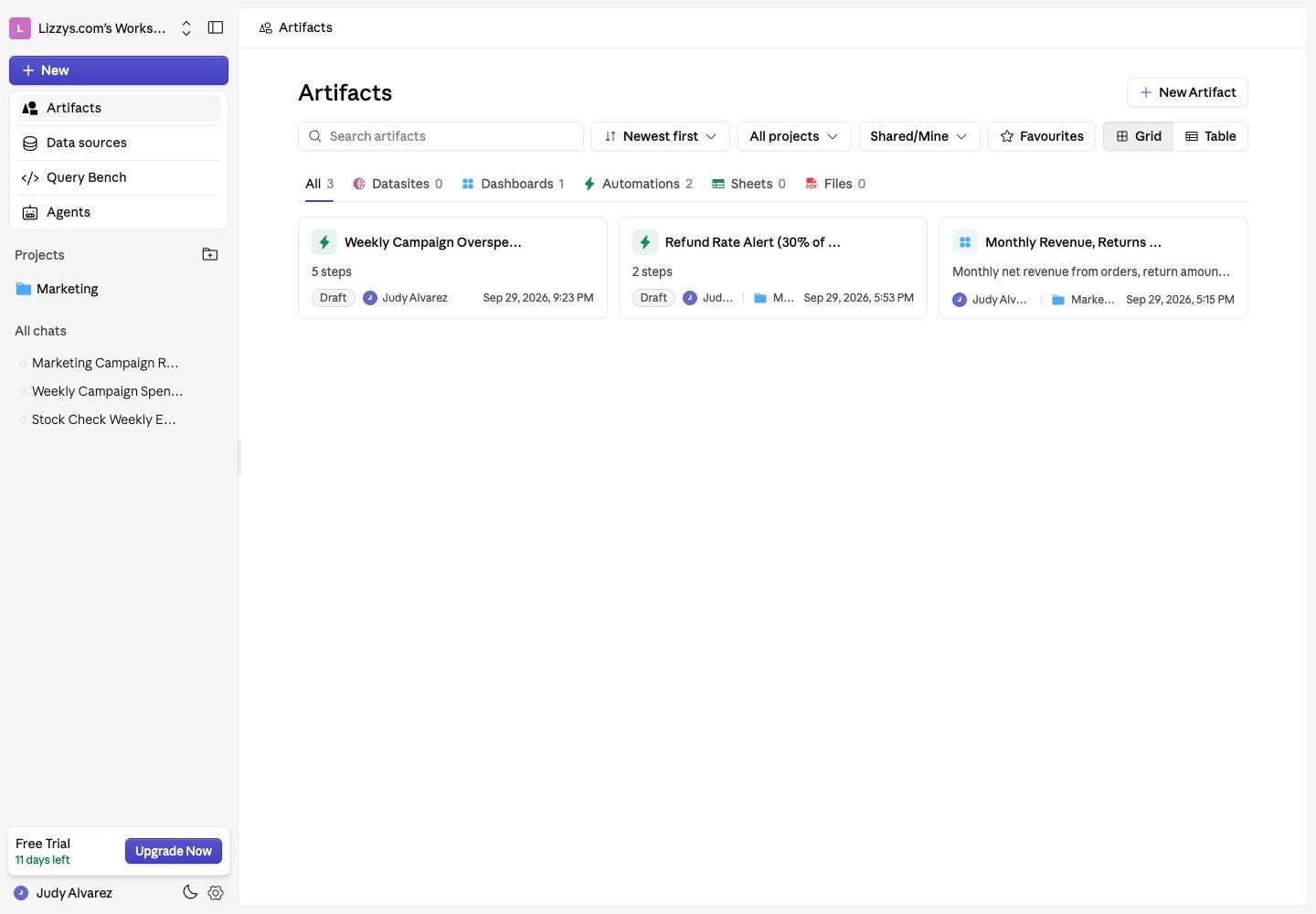
Open **Artifacts** in the sidebar. Choose **All**, **Datasites**, **Dashboards**, **Automations**, or **Files**. Search by name and use project, ownership, or favorite filters to narrow the list.
Switch between **Grid** and **Table** views. The library shows type, owner, project, and last update. Datasites and automations also have statuses, such as a draft site or paused automation.
## Choose what to create
Track metrics with charts, tables, KPIs, and filters.
Create an interactive site around your data and publish it when ready.
Run a data workflow on a schedule or when an alert condition is met.
Turn analysis into files for a review, meeting, or handoff.
## Create an artifact
You need permission to create the chosen output and access to its data.
1. Select **New Artifact**.
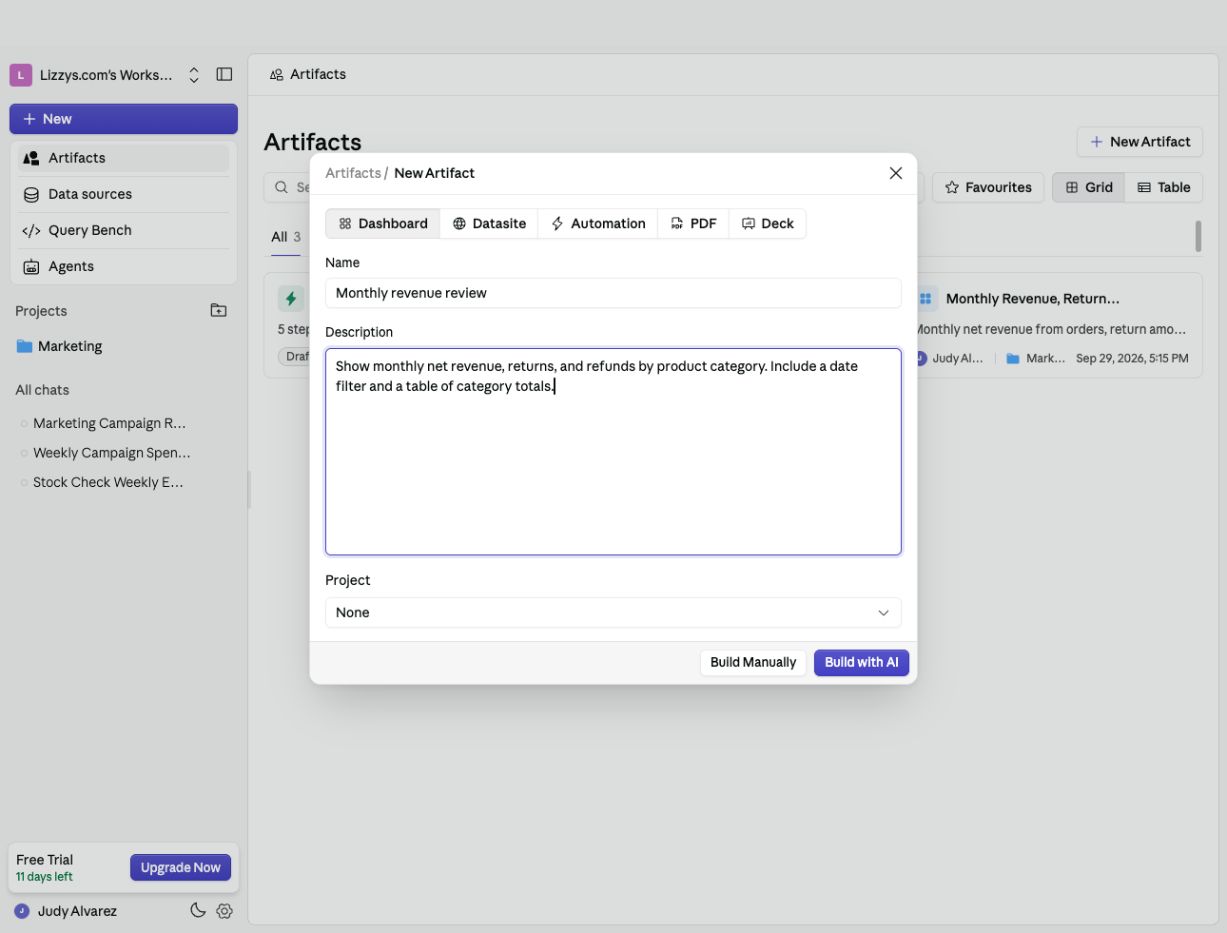
2. Choose **Dashboard**, **Datasite**, **Automation**, **PDF**, or **Deck**.
3. Enter a name and describe the result you want. Optionally choose a project.
4. Select **Build with AI** to open a new Analyst chat with your brief ready to use.
Dashboards, Datasites, and automations also offer **Build Manually** to open their editor. PDFs and decks are built with AI.
## Before you begin
You see artifacts available through ownership, direct sharing, general workspace access, or a project. Creating or changing an artifact also depends on your workspace role and feature access.
## Find an artifact
Open **Artifacts** in the sidebar. Choose **All**, **Datasites**, **Dashboards**, **Automations**, or **Files**. Search by name and use project, ownership, or favorite filters to narrow the list.
Switch between **Grid** and **Table** views. The library shows type, owner, project, and last update. Datasites and automations also have statuses, such as a draft site or paused automation.
## Choose what to create
Track metrics with charts, tables, KPIs, and filters.
Create an interactive site around your data and publish it when ready.
Run a data workflow on a schedule or when an alert condition is met.
Turn analysis into files for a review, meeting, or handoff.
## Create an artifact
You need permission to create the chosen output and access to its data.
1. Select **New Artifact**.
2. Choose **Dashboard**, **Datasite**, **Automation**, **PDF**, or **Deck**.
3. Enter a name and describe the result you want. Optionally choose a project.
4. Select **Build with AI** to open a new Analyst chat with your brief ready to use.
Dashboards, Datasites, and automations also offer **Build Manually** to open their editor. PDFs and decks are built with AI.
 You can start from an existing Analyst conversation too: ask it to create an output from the work you are discussing.
## Open and edit
Open an artifact from the library or its card in a chat. A chat card opens a preview or editor beside the conversation so you can inspect the output while requesting changes.
For editable artifacts, the **⋯** menu includes actions such as **Edit in chat**, **Edit manually**, and assigning a project. Generated files use file-specific actions. Actions depend on the type and your access.
## Share the result
Each output has its own sharing or delivery flow. Share a dashboard, publish a Datasite, schedule or activate an automation, or download a file using that feature's controls. Creating an artifact alone does not publish a site or turn on an automation.
## Next steps
Your artifact is ready when it appears in the library and opens with the expected content. Use the feature guides above to finish and share it. Keep it with its supporting analysis by [organizing it in a project](/projects/overview).
This documentation is built and hosted on [Mintlify](https://mintlify.com), a developer documentation platform.
You can start from an existing Analyst conversation too: ask it to create an output from the work you are discussing.
## Open and edit
Open an artifact from the library or its card in a chat. A chat card opens a preview or editor beside the conversation so you can inspect the output while requesting changes.
For editable artifacts, the **⋯** menu includes actions such as **Edit in chat**, **Edit manually**, and assigning a project. Generated files use file-specific actions. Actions depend on the type and your access.
## Share the result
Each output has its own sharing or delivery flow. Share a dashboard, publish a Datasite, schedule or activate an automation, or download a file using that feature's controls. Creating an artifact alone does not publish a site or turn on an automation.
## Next steps
Your artifact is ready when it appears in the library and opens with the expected content. Use the feature guides above to finish and share it. Keep it with its supporting analysis by [organizing it in a project](/projects/overview).
This documentation is built and hosted on [Mintlify](https://mintlify.com), a developer documentation platform.