> ## Documentation Index
> Fetch the complete documentation index at: https://docs.supaboard.ai/llms.txt
> Use this file to discover all available pages before exploring further.
# Share a dashboard
> Give teammates the right level of access and understand who can open a dashboard link.
Sharing lets another person open the dashboard and, if you allow it, ask questions, change existing content, or add new content.
## Before you begin
You must own the dashboard to manage its sharing. Review the data it contains and decide what recipients should be able to do.
## Share with specific people
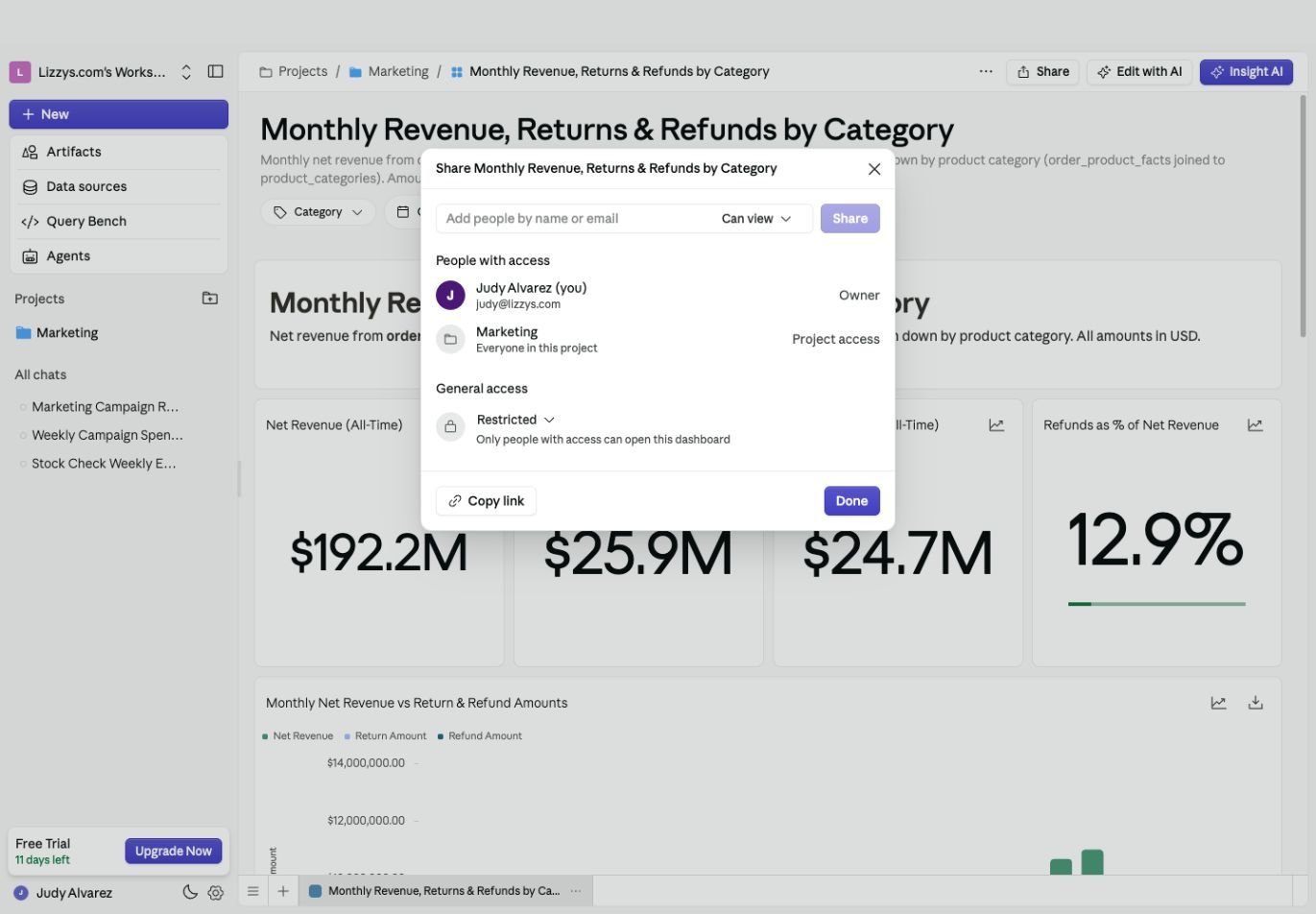
1. Open the dashboard and select **Share**.
2. Find the person by name or email.
3. Choose the access level beside the name field.
4. Select **Share** and review **People with access**.
5. Use **Copy link** to get the dashboard address.
 ## Choose an access level
| Level | What the person can do |
| - | - |
| **Can view** | Open all dashboard pages, use filters, and drill into widgets |
| **Can chat** | Also ask the AI about the dashboard and generate reports |
| **Can edit** | Also change or remove existing widgets, pages, layout, and filters |
| **Can create** | Also add new widgets and pages |
Editing and creating also require an editing role in the workspace. Sharing, deleting the dashboard, and managing its embeds remain owner actions.
## Check project and general access
If the dashboard belongs to a project, **People with access** also shows access inherited from that project. Review [project sharing](/projects/overview#share-and-manage-the-project) when a person's access comes from there.
**General access** controls whether a wider audience can open it:
* **Restricted:** only people who already have access.
* **Everyone in the workspace:** workspace members receive the selected access level.
* **Anyone with the link:** people with the link receive the selected access level.
Read the description under the control after choosing an option. Copying a link does not, by itself, make a restricted dashboard accessible to its recipient.
## Expected result
The intended people appear in the access list, and the link opens with the permissions you selected. Check the recipient's access before using the dashboard in a team review.
## Next steps
Use [embedding](/dashboards/embedding/overview) to place a dashboard in another site, or [export a report](/dashboards/how-to/export-dashboard-reports) to share a file.
This documentation is built and hosted on [Mintlify](https://mintlify.com), a developer documentation platform.
## Choose an access level
| Level | What the person can do |
| - | - |
| **Can view** | Open all dashboard pages, use filters, and drill into widgets |
| **Can chat** | Also ask the AI about the dashboard and generate reports |
| **Can edit** | Also change or remove existing widgets, pages, layout, and filters |
| **Can create** | Also add new widgets and pages |
Editing and creating also require an editing role in the workspace. Sharing, deleting the dashboard, and managing its embeds remain owner actions.
## Check project and general access
If the dashboard belongs to a project, **People with access** also shows access inherited from that project. Review [project sharing](/projects/overview#share-and-manage-the-project) when a person's access comes from there.
**General access** controls whether a wider audience can open it:
* **Restricted:** only people who already have access.
* **Everyone in the workspace:** workspace members receive the selected access level.
* **Anyone with the link:** people with the link receive the selected access level.
Read the description under the control after choosing an option. Copying a link does not, by itself, make a restricted dashboard accessible to its recipient.
## Expected result
The intended people appear in the access list, and the link opens with the permissions you selected. Check the recipient's access before using the dashboard in a team review.
## Next steps
Use [embedding](/dashboards/embedding/overview) to place a dashboard in another site, or [export a report](/dashboards/how-to/export-dashboard-reports) to share a file.
This documentation is built and hosted on [Mintlify](https://mintlify.com), a developer documentation platform.