> ## Documentation Index
> Fetch the complete documentation index at: https://docs.supaboard.ai/llms.txt
> Use this file to discover all available pages before exploring further.
# Postgres
Connect Supaboard to a PostgreSQL database for direct querying, schema discovery, and AI-powered analysis.
Open **Data sources → Connect Data Source → PostgreSQL** to use this guide. For the overall workflow and the check after setup, see [Connect a data source](/data-sources/connect-a-data-source).
## Before you connect
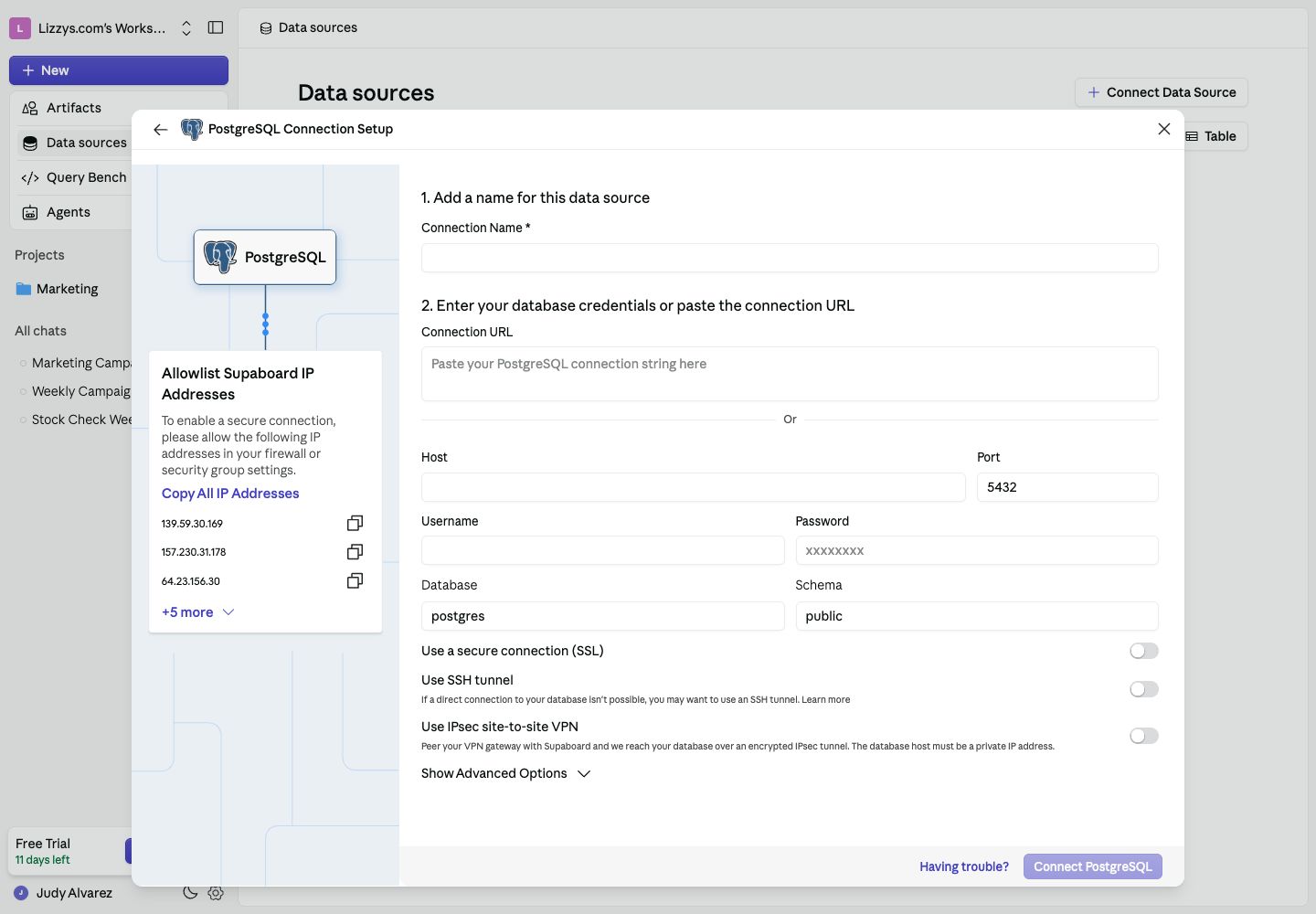
**Network access** — Supaboard connects from a fixed set of egress IPs. Add them to your database firewall allow-list before attempting a connection. The current IP list is shown inside the connector form under **Allowlist Supaboard IP Addresses**.
**Database user permissions** — The user you provide needs at minimum:
* `CONNECT` on the database
* `USAGE` on the target schema(s)
* `SELECT` on the tables you want to expose
See [Recommended database user permissions](#recommended-database-user-permissions) for the exact SQL.
## Connect PostgreSQL
1. Open **Data sources → Connect Data Source → PostgreSQL**.
2. Enter a recognizable **Connection Name**.
3. Paste a **Connection URL**, or fill in the host, port, username, password, database, and schema fields below.
4. Configure SSL and the network connection method your database requires. Use the current IP list shown in the form for your firewall.
5. Choose **Connect PostgreSQL**. Wait for table discovery, then open the source and confirm the intended tables are available.
 Once connected, make the source available to the agent you will use and ask a simple question to check the result.
## Connection fields
| Field | Default | Required | Description |
| - | - | - | - |
| **Connection Name** | — | Yes | Label shown in the Supaboard UI |
| **Host** | — | Yes | Hostname or IP of your PostgreSQL server |
| **Port** | `5432` | Yes | PostgreSQL port |
| **Database** | `postgres` | No | Database name; Supaboard auto-discovers if left blank |
| **Username** | — | Yes | Database user |
| **Password** | — | Yes | Password for the database user |
| **Schema** | `public` | No | Default schema for queries |
| **Additional JDBC Parameters** | — | No | Extra key=value pairs appended to the JDBC URL |
## SSH Tunnel fields
Shown when the **SSH Tunnel** toggle is enabled.
| Field | Default | Required | Description |
| - | - | - | - |
| **SSH Host** | — | Yes | Hostname or IP of the SSH bastion server |
| **SSH Port** | `22` | Yes | SSH port on the bastion server |
| **SSH Username** | — | Yes | SSH login username |
| **SSH Connection Type** | `Private Key` | Yes | `Private Key` or `Password` |
| **SSH Private Key** | — | If Private Key | PEM-encoded private key |
| **SSH Passphrase** | — | No | Passphrase for an encrypted private key |
| **SSH Password** | — | If Password | Password for SSH password authentication |
## Finding your connection details
### Amazon RDS for PostgreSQL
1. Open the [RDS Console](https://console.aws.amazon.com/rds/) and select your instance.
2. Under **Connectivity & security**, copy the **Endpoint** — this is your **Host**.
3. The default **Port** is `5432`.
4. Your **Database** name was set when the instance was created (visible in the **Configuration** tab).
5. Ensure the RDS security group allows inbound TCP on port 5432 from Supaboard's egress IPs, or use an SSH tunnel.
**Documentation:** [Connecting to a PostgreSQL DB instance](https://docs.aws.amazon.com/AmazonRDS/latest/UserGuide/USER_ConnectToPostgreSQLInstance.html) · [RDS for PostgreSQL overview](https://docs.aws.amazon.com/AmazonRDS/latest/UserGuide/CHAP_PostgreSQL.html)
### Amazon Aurora (PostgreSQL-compatible)
1. In the RDS Console, open your Aurora cluster.
2. Use the **Writer endpoint** as your **Host** for read/write access; use a **Reader endpoint** for read-only.
3. Port is `5432` by default.
4. Add Supaboard IPs to the cluster's VPC security group.
**Documentation:** [Connecting to an Aurora PostgreSQL cluster](https://docs.aws.amazon.com/AmazonRDS/latest/AuroraUserGuide/Aurora.Connecting.html) · [Aurora PostgreSQL overview](https://docs.aws.amazon.com/AmazonRDS/latest/AuroraUserGuide/Aurora.AuroraPostgreSQL.html)
### Google Cloud SQL for PostgreSQL
1. Open the [Cloud SQL Console](https://console.cloud.google.com/sql) and select your instance.
2. Under **Connect to this instance**, copy the **Public IP address** as your **Host**.
3. Under **Connections → Authorized networks**, add each Supaboard egress IP.
4. Alternatively, use the Cloud SQL Auth Proxy via an SSH tunnel.
**Documentation:** [Cloud SQL for PostgreSQL overview](https://cloud.google.com/sql/docs/postgres) · [Connecting overview](https://cloud.google.com/sql/docs/postgres/connect-overview) · [Authorizing with IP addresses](https://cloud.google.com/sql/docs/postgres/authorize-networks)
### Azure Database for PostgreSQL
1. Open your server in the [Azure Portal](https://portal.azure.com).
2. On the **Overview** page, copy **Server name** — this is your **Host** (format: `server.postgres.database.azure.com`).
3. Under **Settings → Connection security**, add a firewall rule for each Supaboard egress IP.
4. SSL enforcement is enabled by default on Azure — enable the SSL toggle in Supaboard.
**Documentation:** [Azure Database for PostgreSQL documentation](https://learn.microsoft.com/en-us/azure/postgresql/) · [Firewall rules](https://learn.microsoft.com/en-us/azure/postgresql/flexible-server/concepts-firewall-rules)
## SSL
Enable the **SSL** toggle when your database requires encrypted connections (recommended for all cloud-hosted instances).
* **SSL Certificate** — paste the server's CA certificate in PEM format if your database uses a self-signed or private CA certificate. Leave blank for certificates signed by a public CA.
## SSH Tunnel
An SSH tunnel routes the database connection through a bastion host, keeping your database off the public internet entirely.
**When to use it:**
* Your database has no public IP
* You want to avoid adding Supaboard IPs to your database firewall
* Your security policy requires all external connections to go through a jump server
**Checklist:**
* [ ] The bastion server can reach the database host on port 5432
* [ ] Supaboard's egress IPs are allowed on the bastion server's SSH port (default 22)
* [ ] The SSH user has permission to forward connections (no `no-port-forwarding` in `authorized_keys`)
* [ ] If using a private key, it is in PEM format (OpenSSH format may need conversion with `ssh-keygen -p -m PEM`)
## IPsec Site-to-Site VPN
If your database lives on a private network, you can peer your VPN gateway with Supaboard over IKEv2 IPsec instead of exposing the database or running a bastion host. Enable the **Use IPsec site-to-site VPN** toggle in the connector form.
| Field | Required | Description |
| - | - | - |
| **VPN Gateway Address** | Yes | Public IP of your VPN gateway — or a per-server mapping for providers with one tunnel endpoint per peer (OCI/AWS managed VPN), e.g. `=,…` |
| **Pre-Shared Key** | Yes | The PSK configured on your gateway for the Supaboard tunnels |
| **Remote Subnet** | No | CIDR the tunnel should route. Defaults to your database host `/32` |
**Checklist:**
* [ ] Your VPN gateway has one IKEv2 + pre-shared-key tunnel per Supaboard IP (the IPs shown under **Whitelist IPs**)
* [ ] The gateway allows UDP 500, UDP 4500, and ESP (IP protocol 50) from those IPs
* [ ] The **Host** field is the database's **private IP address** — private DNS names don't resolve from Supaboard
* [ ] Enter the database name manually — auto-discovery doesn't run through the VPN before the connection is saved
Gateway settings, supported ciphers, a strongSwan example, and troubleshooting: [IPsec Site-to-Site VPN guide](/data-sources/security/ipsec-vpn).
## Recommended database user permissions
```sql theme={null}
-- Create a dedicated read-only user
CREATE USER supaboard WITH PASSWORD 'strong_password_here';
-- Allow connection to the database
GRANT CONNECT ON DATABASE your_database TO supaboard;
-- Allow schema access
GRANT USAGE ON SCHEMA public TO supaboard;
-- Allow reading all current tables
GRANT SELECT ON ALL TABLES IN SCHEMA public TO supaboard;
-- Allow reading future tables automatically
ALTER DEFAULT PRIVILEGES IN SCHEMA public
GRANT SELECT ON TABLES TO supaboard;
```
Replace `public` with each schema you want to expose. Run the `GRANT USAGE` and `GRANT SELECT` blocks for each schema.
## Troubleshooting
| Error | Likely cause | Fix |
| - | - | - |
| `Connection refused` | Wrong host or port, or firewall blocking | Verify host/port; add Supaboard IPs to firewall allow-list |
| `password authentication failed` | Wrong username or password | Double-check credentials; confirm the user exists in this database |
| `database "X" does not exist` | Database name typo | Check database name in your RDS/Cloud SQL console |
| `SSL connection required` | Server requires SSL but toggle is off | Enable the SSL toggle |
| `FATAL: no pg_hba.conf entry` | Database server not configured to accept connections from this IP | Add Supaboard egress IPs to `pg_hba.conf` or use an SSH tunnel |
| `could not connect to server: Connection timed out` | Bastion/SSH host unreachable | Verify SSH host, port, and that Supaboard IPs are whitelisted on the bastion |
This documentation is built and hosted on [Mintlify](https://mintlify.com), a developer documentation platform.
Once connected, make the source available to the agent you will use and ask a simple question to check the result.
## Connection fields
| Field | Default | Required | Description |
| - | - | - | - |
| **Connection Name** | — | Yes | Label shown in the Supaboard UI |
| **Host** | — | Yes | Hostname or IP of your PostgreSQL server |
| **Port** | `5432` | Yes | PostgreSQL port |
| **Database** | `postgres` | No | Database name; Supaboard auto-discovers if left blank |
| **Username** | — | Yes | Database user |
| **Password** | — | Yes | Password for the database user |
| **Schema** | `public` | No | Default schema for queries |
| **Additional JDBC Parameters** | — | No | Extra key=value pairs appended to the JDBC URL |
## SSH Tunnel fields
Shown when the **SSH Tunnel** toggle is enabled.
| Field | Default | Required | Description |
| - | - | - | - |
| **SSH Host** | — | Yes | Hostname or IP of the SSH bastion server |
| **SSH Port** | `22` | Yes | SSH port on the bastion server |
| **SSH Username** | — | Yes | SSH login username |
| **SSH Connection Type** | `Private Key` | Yes | `Private Key` or `Password` |
| **SSH Private Key** | — | If Private Key | PEM-encoded private key |
| **SSH Passphrase** | — | No | Passphrase for an encrypted private key |
| **SSH Password** | — | If Password | Password for SSH password authentication |
## Finding your connection details
### Amazon RDS for PostgreSQL
1. Open the [RDS Console](https://console.aws.amazon.com/rds/) and select your instance.
2. Under **Connectivity & security**, copy the **Endpoint** — this is your **Host**.
3. The default **Port** is `5432`.
4. Your **Database** name was set when the instance was created (visible in the **Configuration** tab).
5. Ensure the RDS security group allows inbound TCP on port 5432 from Supaboard's egress IPs, or use an SSH tunnel.
**Documentation:** [Connecting to a PostgreSQL DB instance](https://docs.aws.amazon.com/AmazonRDS/latest/UserGuide/USER_ConnectToPostgreSQLInstance.html) · [RDS for PostgreSQL overview](https://docs.aws.amazon.com/AmazonRDS/latest/UserGuide/CHAP_PostgreSQL.html)
### Amazon Aurora (PostgreSQL-compatible)
1. In the RDS Console, open your Aurora cluster.
2. Use the **Writer endpoint** as your **Host** for read/write access; use a **Reader endpoint** for read-only.
3. Port is `5432` by default.
4. Add Supaboard IPs to the cluster's VPC security group.
**Documentation:** [Connecting to an Aurora PostgreSQL cluster](https://docs.aws.amazon.com/AmazonRDS/latest/AuroraUserGuide/Aurora.Connecting.html) · [Aurora PostgreSQL overview](https://docs.aws.amazon.com/AmazonRDS/latest/AuroraUserGuide/Aurora.AuroraPostgreSQL.html)
### Google Cloud SQL for PostgreSQL
1. Open the [Cloud SQL Console](https://console.cloud.google.com/sql) and select your instance.
2. Under **Connect to this instance**, copy the **Public IP address** as your **Host**.
3. Under **Connections → Authorized networks**, add each Supaboard egress IP.
4. Alternatively, use the Cloud SQL Auth Proxy via an SSH tunnel.
**Documentation:** [Cloud SQL for PostgreSQL overview](https://cloud.google.com/sql/docs/postgres) · [Connecting overview](https://cloud.google.com/sql/docs/postgres/connect-overview) · [Authorizing with IP addresses](https://cloud.google.com/sql/docs/postgres/authorize-networks)
### Azure Database for PostgreSQL
1. Open your server in the [Azure Portal](https://portal.azure.com).
2. On the **Overview** page, copy **Server name** — this is your **Host** (format: `server.postgres.database.azure.com`).
3. Under **Settings → Connection security**, add a firewall rule for each Supaboard egress IP.
4. SSL enforcement is enabled by default on Azure — enable the SSL toggle in Supaboard.
**Documentation:** [Azure Database for PostgreSQL documentation](https://learn.microsoft.com/en-us/azure/postgresql/) · [Firewall rules](https://learn.microsoft.com/en-us/azure/postgresql/flexible-server/concepts-firewall-rules)
## SSL
Enable the **SSL** toggle when your database requires encrypted connections (recommended for all cloud-hosted instances).
* **SSL Certificate** — paste the server's CA certificate in PEM format if your database uses a self-signed or private CA certificate. Leave blank for certificates signed by a public CA.
## SSH Tunnel
An SSH tunnel routes the database connection through a bastion host, keeping your database off the public internet entirely.
**When to use it:**
* Your database has no public IP
* You want to avoid adding Supaboard IPs to your database firewall
* Your security policy requires all external connections to go through a jump server
**Checklist:**
* [ ] The bastion server can reach the database host on port 5432
* [ ] Supaboard's egress IPs are allowed on the bastion server's SSH port (default 22)
* [ ] The SSH user has permission to forward connections (no `no-port-forwarding` in `authorized_keys`)
* [ ] If using a private key, it is in PEM format (OpenSSH format may need conversion with `ssh-keygen -p -m PEM`)
## IPsec Site-to-Site VPN
If your database lives on a private network, you can peer your VPN gateway with Supaboard over IKEv2 IPsec instead of exposing the database or running a bastion host. Enable the **Use IPsec site-to-site VPN** toggle in the connector form.
| Field | Required | Description |
| - | - | - |
| **VPN Gateway Address** | Yes | Public IP of your VPN gateway — or a per-server mapping for providers with one tunnel endpoint per peer (OCI/AWS managed VPN), e.g. `=,…` |
| **Pre-Shared Key** | Yes | The PSK configured on your gateway for the Supaboard tunnels |
| **Remote Subnet** | No | CIDR the tunnel should route. Defaults to your database host `/32` |
**Checklist:**
* [ ] Your VPN gateway has one IKEv2 + pre-shared-key tunnel per Supaboard IP (the IPs shown under **Whitelist IPs**)
* [ ] The gateway allows UDP 500, UDP 4500, and ESP (IP protocol 50) from those IPs
* [ ] The **Host** field is the database's **private IP address** — private DNS names don't resolve from Supaboard
* [ ] Enter the database name manually — auto-discovery doesn't run through the VPN before the connection is saved
Gateway settings, supported ciphers, a strongSwan example, and troubleshooting: [IPsec Site-to-Site VPN guide](/data-sources/security/ipsec-vpn).
## Recommended database user permissions
```sql theme={null}
-- Create a dedicated read-only user
CREATE USER supaboard WITH PASSWORD 'strong_password_here';
-- Allow connection to the database
GRANT CONNECT ON DATABASE your_database TO supaboard;
-- Allow schema access
GRANT USAGE ON SCHEMA public TO supaboard;
-- Allow reading all current tables
GRANT SELECT ON ALL TABLES IN SCHEMA public TO supaboard;
-- Allow reading future tables automatically
ALTER DEFAULT PRIVILEGES IN SCHEMA public
GRANT SELECT ON TABLES TO supaboard;
```
Replace `public` with each schema you want to expose. Run the `GRANT USAGE` and `GRANT SELECT` blocks for each schema.
## Troubleshooting
| Error | Likely cause | Fix |
| - | - | - |
| `Connection refused` | Wrong host or port, or firewall blocking | Verify host/port; add Supaboard IPs to firewall allow-list |
| `password authentication failed` | Wrong username or password | Double-check credentials; confirm the user exists in this database |
| `database "X" does not exist` | Database name typo | Check database name in your RDS/Cloud SQL console |
| `SSL connection required` | Server requires SSL but toggle is off | Enable the SSL toggle |
| `FATAL: no pg_hba.conf entry` | Database server not configured to accept connections from this IP | Add Supaboard egress IPs to `pg_hba.conf` or use an SSH tunnel |
| `could not connect to server: Connection timed out` | Bastion/SSH host unreachable | Verify SSH host, port, and that Supaboard IPs are whitelisted on the bastion |
This documentation is built and hosted on [Mintlify](https://mintlify.com), a developer documentation platform.