> ## Documentation Index
> Fetch the complete documentation index at: https://docs.supaboard.ai/llms.txt
> Use this file to discover all available pages before exploring further.
# Create a Datasite
> Build an interactive site from a clear brief and your connected data.
Use a Datasite when your audience needs a designed page with its own layout, navigation, and interactive data. Start with a brief, review the preview, and publish after it is ready.
## Before you begin
You need permission to create Datasites and an agent with access to the data you want to use. Prepare the audience, key metrics, date range, and any reference files or brand assets.
## 1. Start from Artifacts
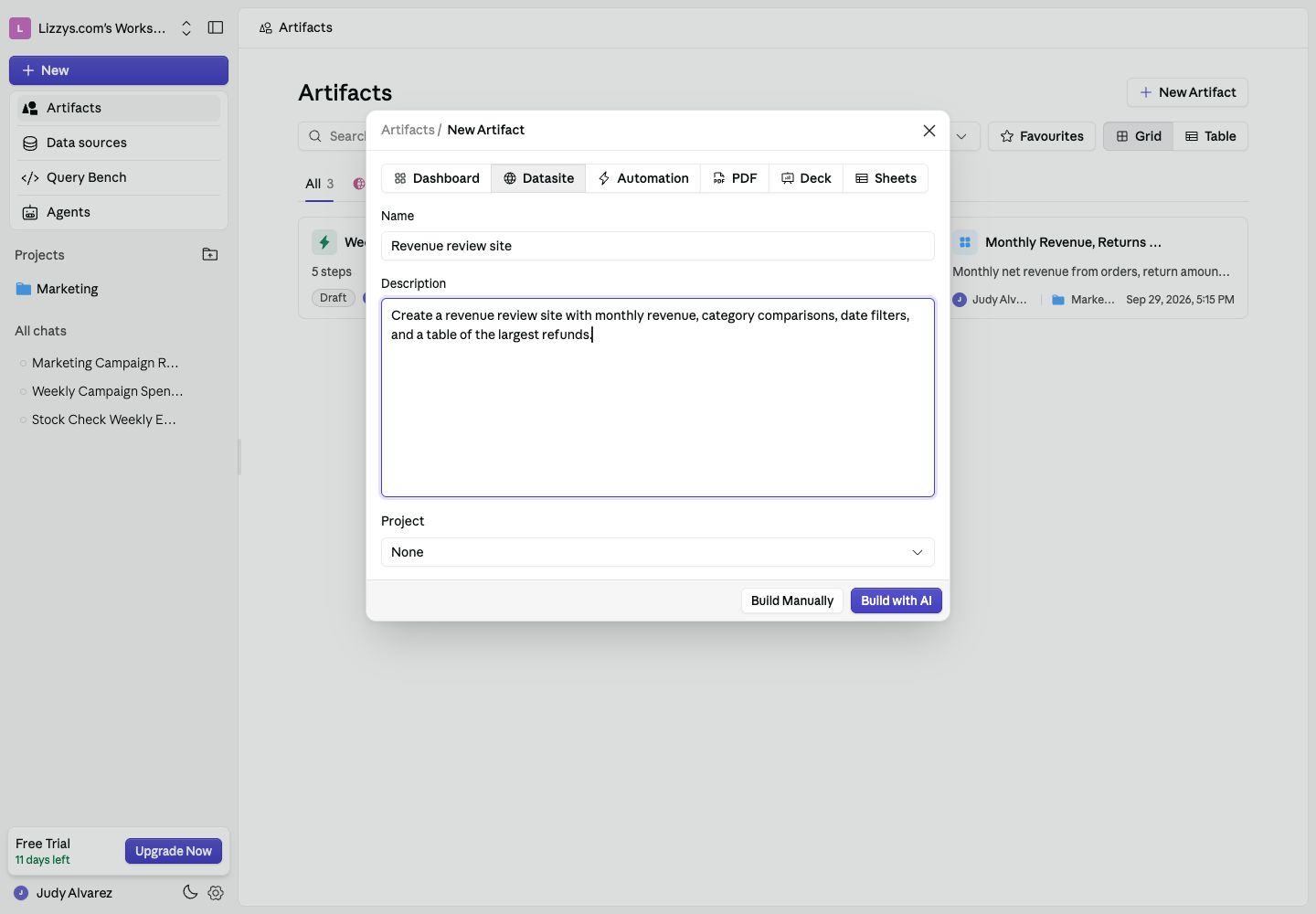
Open **Artifacts → New Artifact → Datasite**. Enter a **Name** and **Description**, and select a project if this work belongs with an existing initiative. Choose **Build with AI** to continue with your brief.
You can also use the **Datasite** shortcut on Home or ask for a Datasite in an existing analysis chat. Choose **Build Manually** in the artifact form when you want to start in the editor yourself.
 ## 2. Describe the page
Give the Analyst a specific outcome:
> Create a revenue review site for our operations team. Show completed orders and net revenue for the last 12 months, followed by a category breakdown. Add a date filter and a table of the largest refunds. Use a simple light layout and explain each metric.
Name the source or agent when several could fit. Attach a logo or reference document if it should shape the result. Check any questions about metric definitions before continuing.
## 3. Build and review
In the Datasite editor, **Build** creates or changes the site. Use **Plan** for a proposed approach first, or **Ask** to ask questions without changing the site.
After a successful build, use **Preview** to inspect the page. Check the **Desktop**, **Tablet**, and **Phone** sizes, try its filters, and compare key numbers with a known result. The **Glossary** tab holds the saved queries behind the page.
## 4. Refine a specific part
Use **Select & edit elements** in the preview toolbar, then click the part you want to change. Describe the change in the chat, such as “Show the comparison period under this KPI.” Review the new preview before continuing.
If a build fails, read the error and use **Fix with AI**. A failed preview does not replace the published version.
## Expected result
You have a working preview with the intended layout, data, and filters. It is ready for review by your team; publishing is a separate step.
## Next steps
[Publish and share the site](/datasites/publish-and-share), add [custom domains](/datasites/datasite-custom-domains), or manage [variables](/datasites/datasite-variables).
This documentation is built and hosted on [Mintlify](https://mintlify.com), a developer documentation platform.
## 2. Describe the page
Give the Analyst a specific outcome:
> Create a revenue review site for our operations team. Show completed orders and net revenue for the last 12 months, followed by a category breakdown. Add a date filter and a table of the largest refunds. Use a simple light layout and explain each metric.
Name the source or agent when several could fit. Attach a logo or reference document if it should shape the result. Check any questions about metric definitions before continuing.
## 3. Build and review
In the Datasite editor, **Build** creates or changes the site. Use **Plan** for a proposed approach first, or **Ask** to ask questions without changing the site.
After a successful build, use **Preview** to inspect the page. Check the **Desktop**, **Tablet**, and **Phone** sizes, try its filters, and compare key numbers with a known result. The **Glossary** tab holds the saved queries behind the page.
## 4. Refine a specific part
Use **Select & edit elements** in the preview toolbar, then click the part you want to change. Describe the change in the chat, such as “Show the comparison period under this KPI.” Review the new preview before continuing.
If a build fails, read the error and use **Fix with AI**. A failed preview does not replace the published version.
## Expected result
You have a working preview with the intended layout, data, and filters. It is ready for review by your team; publishing is a separate step.
## Next steps
[Publish and share the site](/datasites/publish-and-share), add [custom domains](/datasites/datasite-custom-domains), or manage [variables](/datasites/datasite-variables).
This documentation is built and hosted on [Mintlify](https://mintlify.com), a developer documentation platform.