> ## Documentation Index
> Fetch the complete documentation index at: https://docs.supaboard.ai/llms.txt
> Use this file to discover all available pages before exploring further.
# Invite teammates and manage access
> Invite people with the workspace, feature, data, and item access they need.
Invite teammates to collaborate in your workspace, then share the projects or artifacts they should use.
## Before you begin
You need permission to invite members, normally an **Admin** or **Owner** role. Have their work email addresses ready. Review the billing information shown in the invitation or role-change form before confirming.
## 1. Open the invitation form
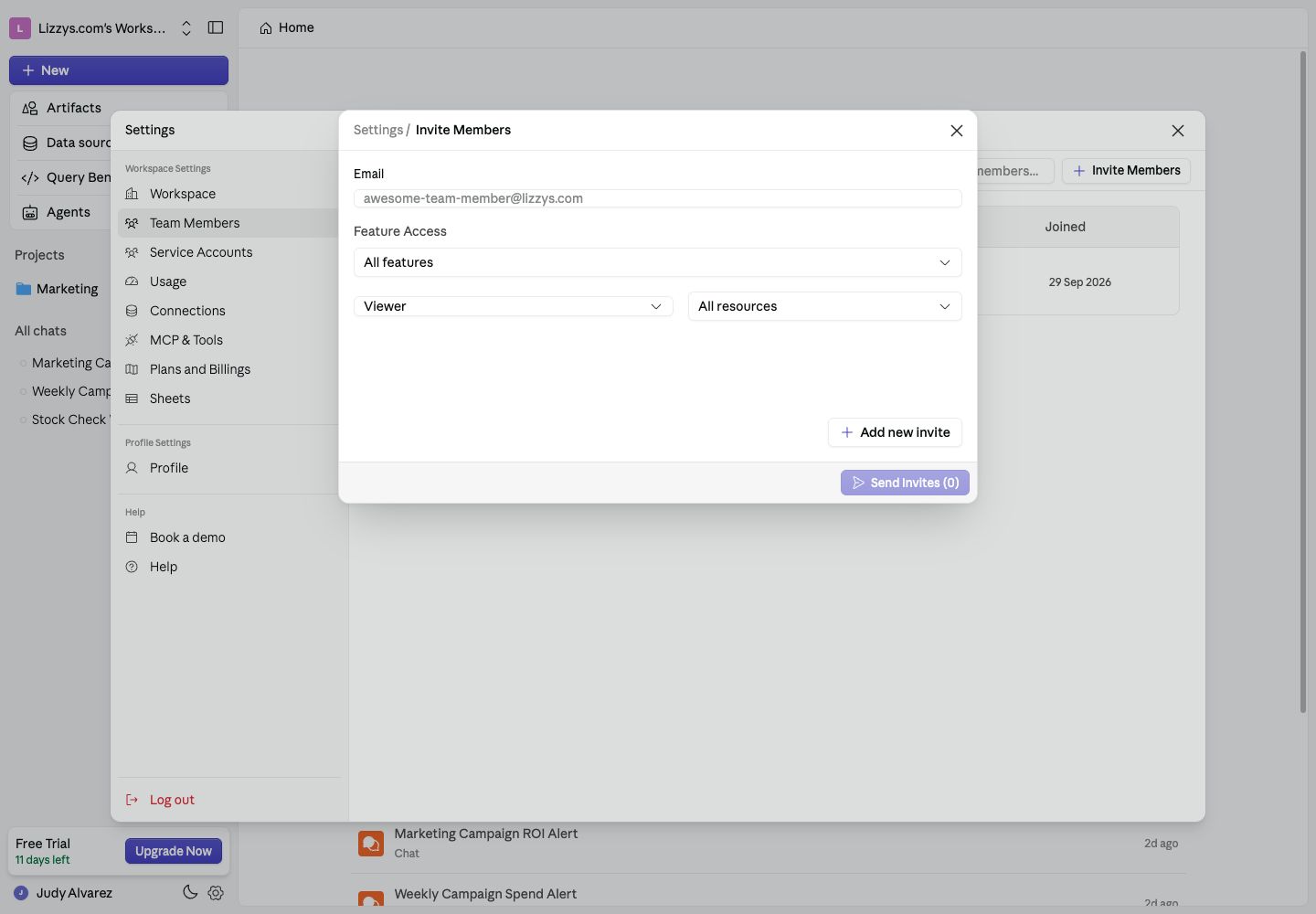
Choose **Settings → Team Members → Invite Members**.
 ## 2. Set the right access
Enter each person's email and choose:
| Setting | What it controls |
| - | - |
| **Role** | Whether the person can view, edit, or administer the workspace |
| **Feature Access** | Which parts of Supaboard they can use |
| **Resource access** | Which connected data sources they can query |
Use **Add new invite** for another person. Review all rows and the displayed seat impact, then choose **Send Invites**.
## 3. Check invitation status
Return to **Team Members**. Pending members appear as invited. Use the available invite actions to copy the invitation link or resend it if needed.
## 4. Share the actual work
Workspace membership alone does not give a person access to every item. Open a project or artifact's **Share** dialog to review its audience and access levels.
For example, a dashboard's **Can view** access allows filters and drill-downs; **Can chat** adds AI questions and reports; **Can edit** changes existing content; **Can create** also adds content. Editing still requires an appropriate workspace role.
Items in a project can inherit access from the project. Check the inherited access shown in the Share dialog before moving sensitive work there.
## 5. Review access later
Use **Team Members** to review roles, features, and resources as responsibilities change. Some changes are owner-only. For an individual item, ask its owner to update sharing.
## Expected result
The invited teammate can enter the workspace and open the intended work with the appropriate controls. If an item or action is missing, check all four layers: workspace role, feature access, data source access, and the item's Share settings.
## Next steps
[Organize work in projects](/projects/overview), [share a dashboard](/dashboards/how-to/share-a-dashboard), or [review usage](/workspace/usage-and-billing).
This documentation is built and hosted on [Mintlify](https://mintlify.com), a developer documentation platform.
## 2. Set the right access
Enter each person's email and choose:
| Setting | What it controls |
| - | - |
| **Role** | Whether the person can view, edit, or administer the workspace |
| **Feature Access** | Which parts of Supaboard they can use |
| **Resource access** | Which connected data sources they can query |
Use **Add new invite** for another person. Review all rows and the displayed seat impact, then choose **Send Invites**.
## 3. Check invitation status
Return to **Team Members**. Pending members appear as invited. Use the available invite actions to copy the invitation link or resend it if needed.
## 4. Share the actual work
Workspace membership alone does not give a person access to every item. Open a project or artifact's **Share** dialog to review its audience and access levels.
For example, a dashboard's **Can view** access allows filters and drill-downs; **Can chat** adds AI questions and reports; **Can edit** changes existing content; **Can create** also adds content. Editing still requires an appropriate workspace role.
Items in a project can inherit access from the project. Check the inherited access shown in the Share dialog before moving sensitive work there.
## 5. Review access later
Use **Team Members** to review roles, features, and resources as responsibilities change. Some changes are owner-only. For an individual item, ask its owner to update sharing.
## Expected result
The invited teammate can enter the workspace and open the intended work with the appropriate controls. If an item or action is missing, check all four layers: workspace role, feature access, data source access, and the item's Share settings.
## Next steps
[Organize work in projects](/projects/overview), [share a dashboard](/dashboards/how-to/share-a-dashboard), or [review usage](/workspace/usage-and-billing).
This documentation is built and hosted on [Mintlify](https://mintlify.com), a developer documentation platform.