> ## Documentation Index
> Fetch the complete documentation index at: https://docs.supaboard.ai/llms.txt
> Use this file to discover all available pages before exploring further.
# Review usage and billing
> Check workspace activity, plan allowance, extra credit balance, and subscription details.
Use workspace settings to see team activity and understand the allowance available before continuing work.
## Before you begin
Your workspace role determines which settings you can see. Billing is managed by the workspace owner. Ask the owner if you need a plan change or access to billing information.
## 1. Review activity
Open **Settings → Usage → Usage**. Select a date range and, if needed, a user. Review the activity cards, prompt usage chart, and activity by user.
Prompt history and its CSV export are shown only to people with the required permission.
## 2. Check plan limits
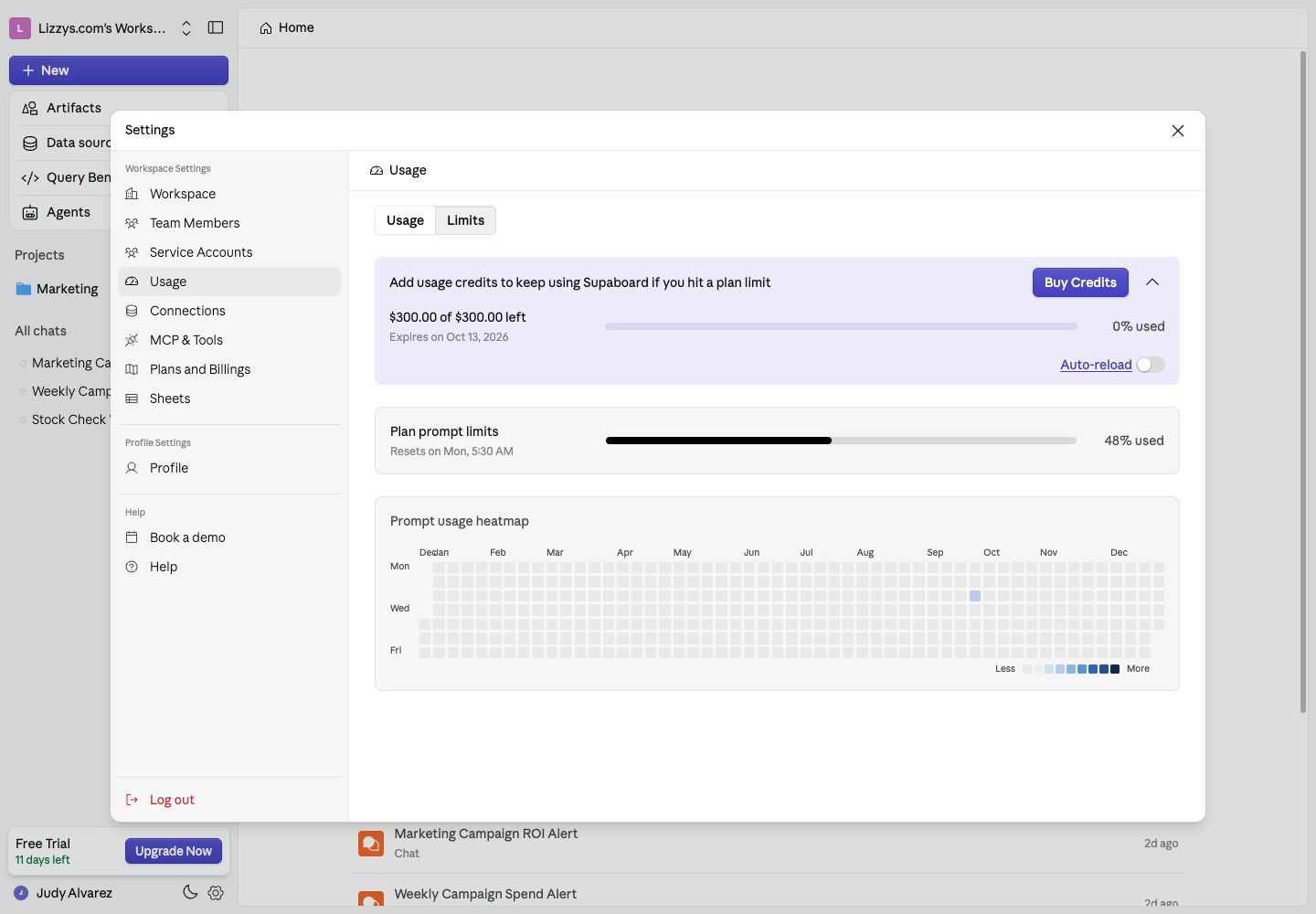
Switch to **Limits**. Read the plan allowance as a percentage and check its reset time. Use the display to understand how much of your included allowance is still available. The current Limits screen labels its progress bar as **% used**.
## 3. Review extra credits
When the extra credits card is available, it shows the remaining balance in dollars and any displayed expiry. **Buy Credits** opens the purchase flow. **Auto-reload**, when available, controls automatic top-ups; review its details before enabling it.
 ## 4. Review the subscription
Open **Settings → Plans and Billings** to review the current plan, renewal information, billable seats, payment method, and invoices. Use the details shown in your workspace when reviewing a change.
Inviting or promoting a teammate can affect billable seats. Review the amount and timing in the confirmation before proceeding.
## Expected result
You know where to check included allowance, extra credits, and renewal details. Your workspace owner can make an informed plan or billing change when needed.
## Next steps
[Review team access](/workspace/invite-and-manage-access) or return to the [workspace reference](/workspace/overview#seats-and-billing).
This documentation is built and hosted on [Mintlify](https://mintlify.com), a developer documentation platform.
## 4. Review the subscription
Open **Settings → Plans and Billings** to review the current plan, renewal information, billable seats, payment method, and invoices. Use the details shown in your workspace when reviewing a change.
Inviting or promoting a teammate can affect billable seats. Review the amount and timing in the confirmation before proceeding.
## Expected result
You know where to check included allowance, extra credits, and renewal details. Your workspace owner can make an informed plan or billing change when needed.
## Next steps
[Review team access](/workspace/invite-and-manage-access) or return to the [workspace reference](/workspace/overview#seats-and-billing).
This documentation is built and hosted on [Mintlify](https://mintlify.com), a developer documentation platform.