

Chats preserve your questions and the Analyst’s answers so you can continue an investigation later.

Before you begin

You can open chats shared with you or accessible through a project. Can view lets you read; Can chat lets you ask follow-up questions. The creator manages renaming, moving, sharing, and deletion.

Find a conversation

  1. Open All chats in the sidebar.
  2. Search for words from the chat title, your questions, or the answers.
  3. Use ownership and project filters to narrow the results, then open the chat.
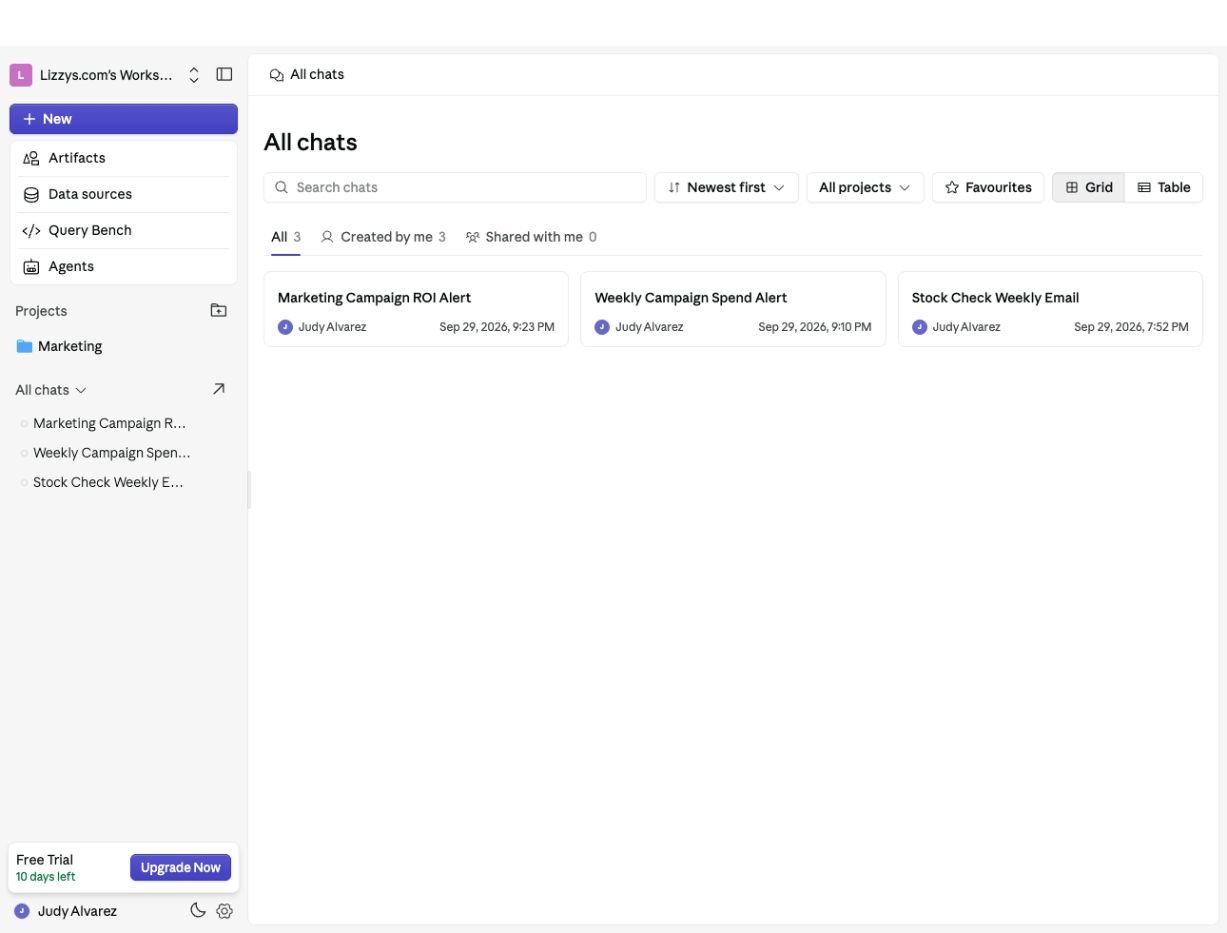
All chats library with a search box, All projects filter, Favourites, Grid and Table views, and ownership tabs

All chats combines search, project filters, favorites, and ownership tabs to help you find a conversation.

Use Pinned for pinned conversations. Chats assigned to a project appear in its Chats tab; select the project filter when looking for them in All chats. The default All chats list leaves out project chats and pinned chats to avoid repeating those lists.

Start a new chat

Click New in the sidebar. Inside a project, the new conversation is associated with that project. A separate chat is useful when you move to a different task or audience.

Pin, favorite, or organize

Open the chat’s ⋯ menu:
  • Pin keeps it in Pinned; Unpin removes it from that list.
  • Use the favorite action to mark a useful conversation, then filter for favorites in the library.
  • Use the project action to file a chat with related work. Destinations depend on your permissions.
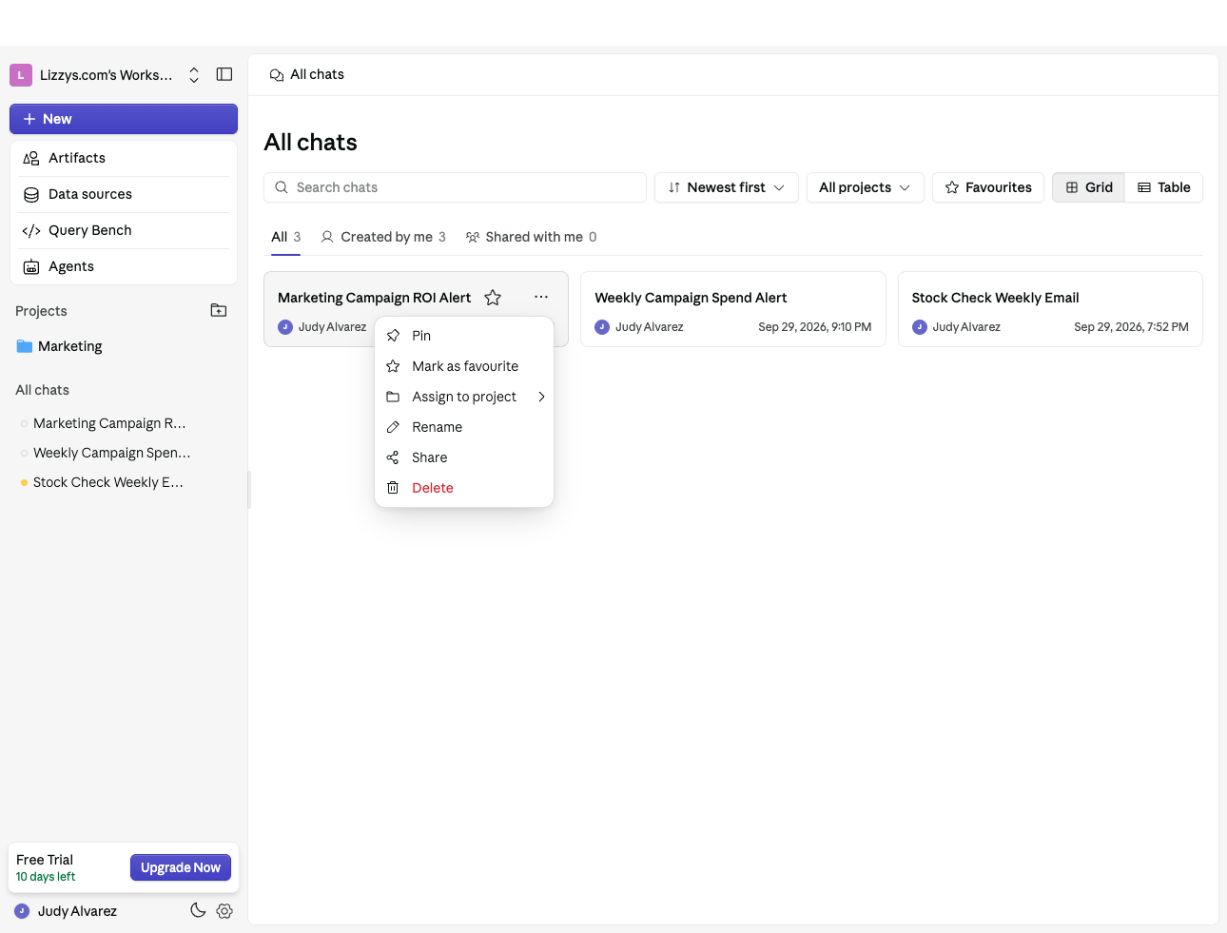
Chat actions menu showing Pin, Mark as favourite, Assign to project, Rename, Share, and Delete

Open a chat's ⋯ menu to pin it, mark it as a favorite, assign a project, rename it, or manage sharing.

Pinning or favoriting helps you find work again. Check a project’s members before adding a chat, because project access can affect who can open it.

Rename or share

A chat’s creator can use Rename or Share in its ⋯ menu. Sharing is also available from the chat’s top bar. Choose Can view for reading or Can chat for follow-ups. Review the people and link access in the dialog before distributing a link. If you can read a shared chat but cannot rename it or change sharing, ask its creator. Reading access does not make you the owner.

Delete a chat

The creator can choose Delete and confirm. Read the confirmation carefully: deleting a conversation removes its messages. Use Unpin or remove it from a project if you only want to change where it appears.

Next steps

Continue the conversation, or create a project to keep related work together. Find generated dashboards, sites, automations, and files in Artifacts.
Last modified on October 2, 2026