

Query Bench is useful when you want to control the query behind an answer. If you prefer to ask in plain English, start with the Analyst.

Before you begin

You need Query Bench access, permission to create queries, and an active data source you can use. A shared query needs Can edit access before you can change its SQL or variables.

1. Open Query Bench

Choose Query Bench in the sidebar, then New Query.
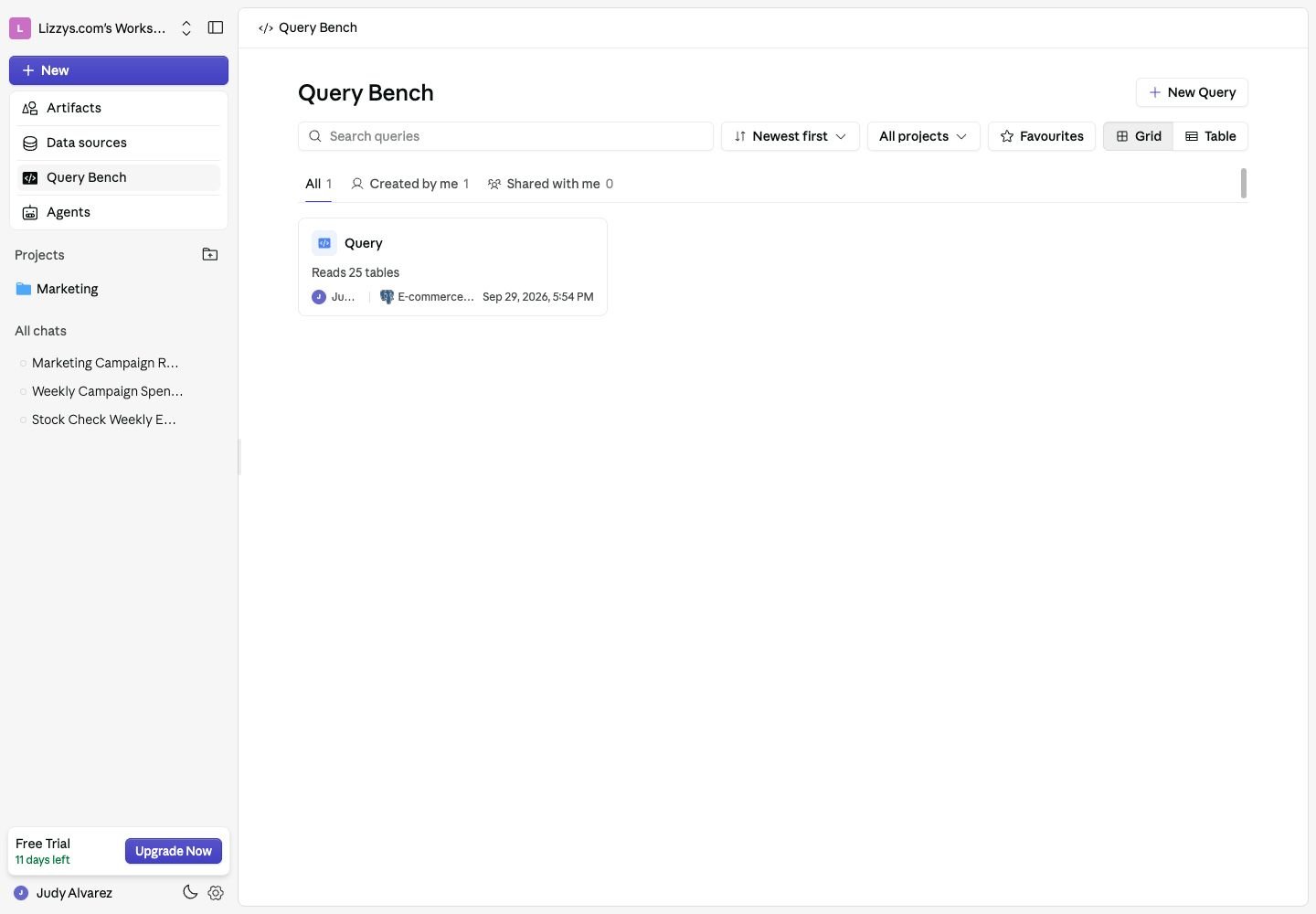
Query Bench library with search, filters, and the New Query button

Query Bench lists the saved queries you can return to and reuse.

2. Choose the source and language

Enter a descriptive query name and select the data source. For a SQL database, use Native Query Language. Python and queries across multiple sources require the corresponding workspace feature. Create the query to open its editor.

3. Write or ask for the query

Use the Schema panel to find the tables and columns. Write your query, or describe the result to the Assistant. For example: “Monthly completed orders and net revenue for the last 12 months.” Review an AI-proposed change before accepting it. Check the time period, status filters, joins, and metric definitions. See Writing SQL queries for examples.

4. Run and inspect

Choose Run Query. This runs and saves the query. Inspect the returned table, then switch to a chart or KPI if that representation fits the result. If it fails, read the error, check the referenced tables and columns, and ask the Assistant for a correction if needed. A successful execution still needs a check that the numbers answer your question.

5. Save and reuse

Use Save when you want to keep an edit without running it. Return from Query Bench to reopen the saved query later. Use the result’s Pin control to add an appropriate visualization to a dashboard. You need permission to add widgets to that dashboard.

Expected result

Your named query appears in Query Bench and can be run again. Its saved definition is separate from a downloaded result or a screenshot.

Next steps

Explore Query Bench settings and history, or edit a dashboard to arrange the pinned result.
Last modified on October 2, 2026