

Before you begin
Create the project in the workspace where the work belongs. You need permission to create projects or add items, and access to the resources you want to use.Create a project
- Use New project beside Projects in the sidebar.
- Give it a descriptive name and choose a folder color.
- Review User Access and choose who should have access.
- Select Create project, then open it from the sidebar.
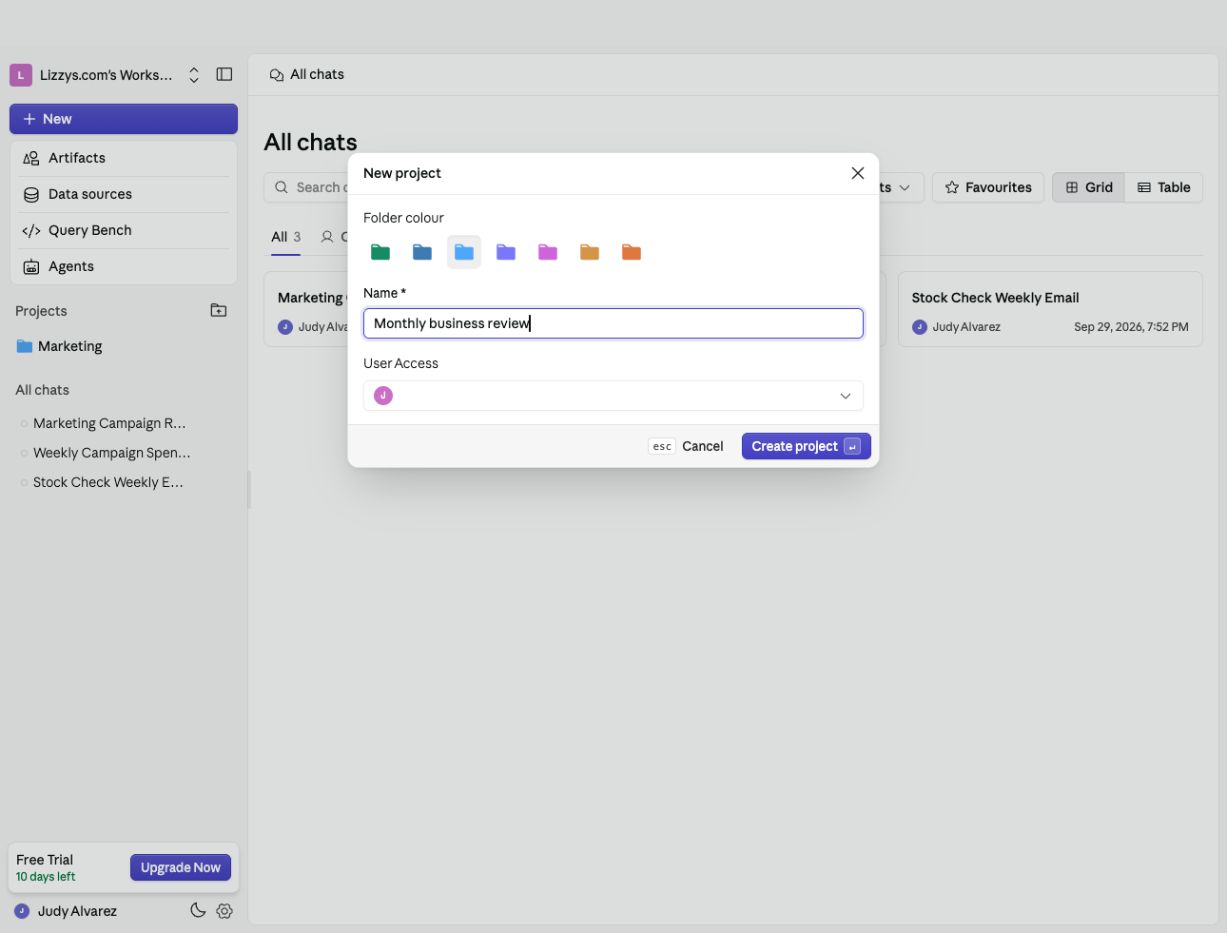
Name the project, choose its folder color, and review User Access before creating it. This example is an unsaved draft.
Work inside a project
The project’s home includes the Analyst message box and four tabs: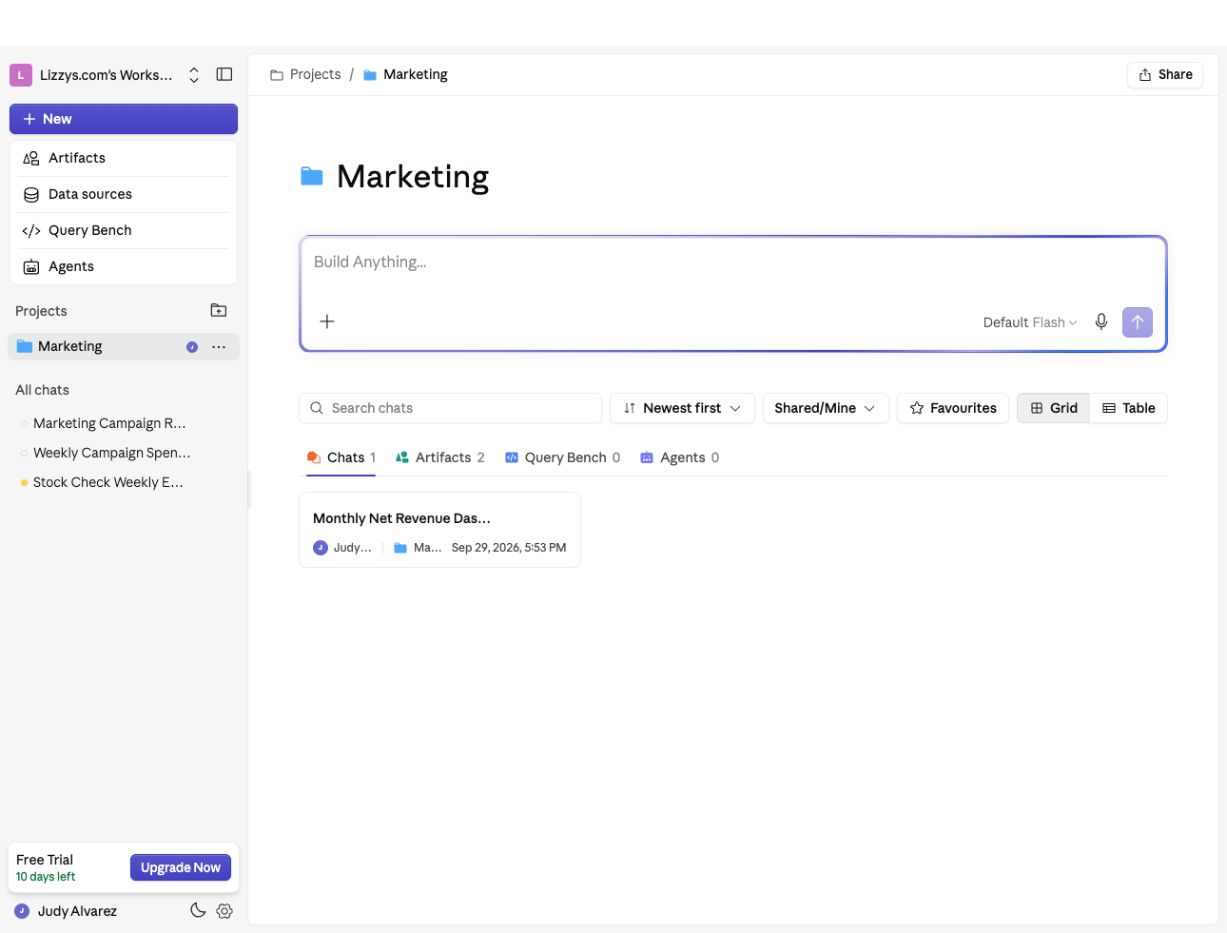
A project's home keeps its chats, artifacts, queries, and agents together beneath the Analyst message box.
Add existing work
Use an item’s ⋯ menu to assign it to a project where you can add items. When using New Artifact, choose the project in the form before building. The item then appears in its project tab. Organizing a query or agent in a project does not replace its data configuration.Share and manage the project
Open Share on the project’s home to review direct and inherited access.
Changes also require an editing role in the workspace. Only the project owner can rename, share, or delete the project.
Review the project’s audience before adding work, because its access can carry through to items inside it. If an action is unavailable, ask the owner to check the Share settings.