

Before you begin
You need Query Bench feature access and an active data source you can use. Start with Create and save a query for a complete walkthrough.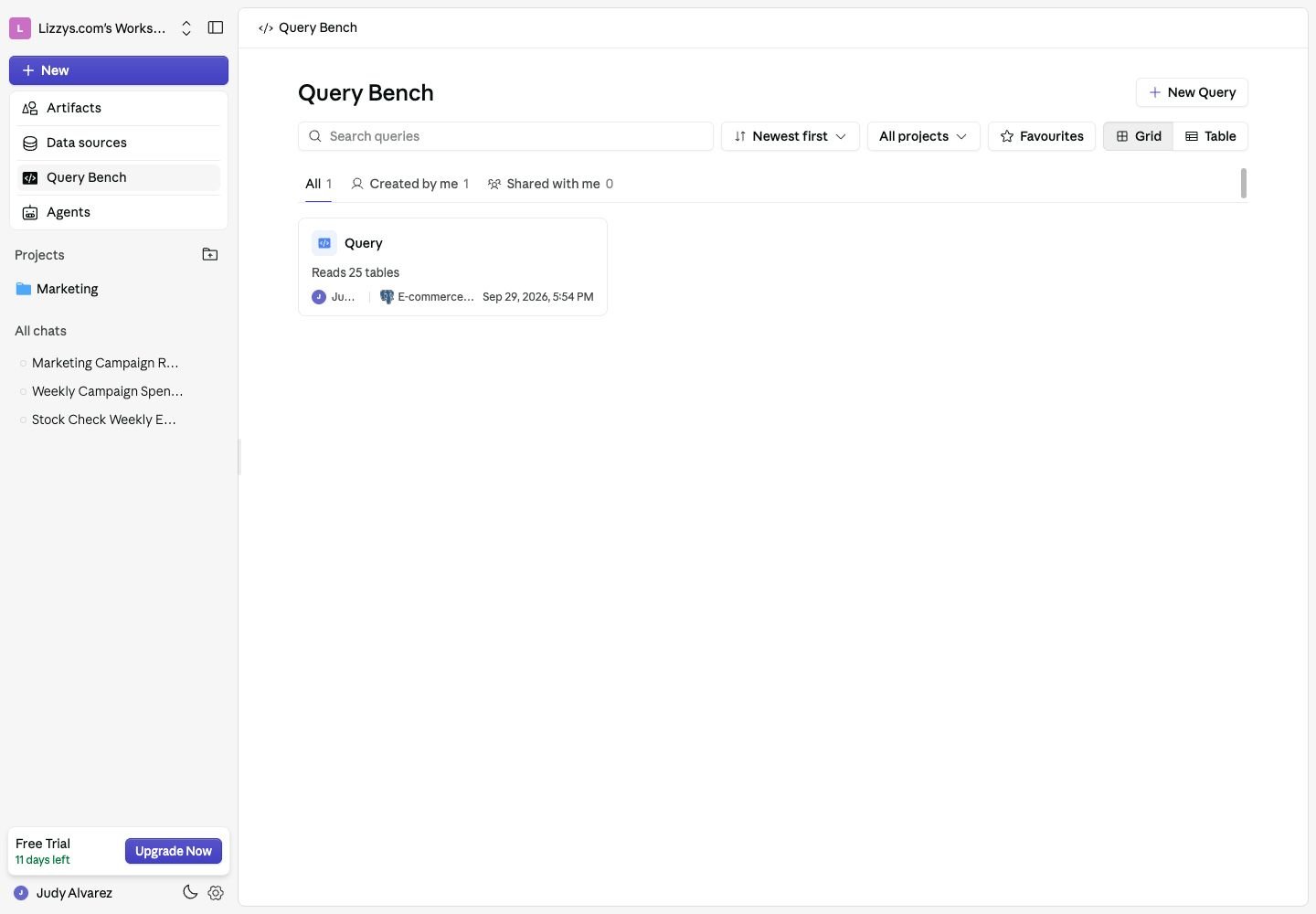
Find saved queries or start a new one from Query Bench.
The Query Bench Home
Navigate to Query Bench in the sidebar to see all saved queries in your workspace.Display modes
Toggle between Grid and Table views. Your preference is saved. Table view columns:Search
Search the loaded queries by title. Use project, ownership, and favorite filters to narrow the list, and load more results when available. Click any query to open it in the editor.Creating a Query
Click New Query to open the Create New Query modal.Query languages
Once created, the editor opens immediately.
The Editor
The editor is a split-pane workspace with a right rail:- Top pane — the code editor
- Bottom pane — results as a table, chart, or KPI
- Right rail — Schema, Assistant, and History tabs
The editor header
Running and saving
These are two separate actions:Code editor features
Syntax highlighting for SQL, Python, and the other supported languages. Placeholder — when the editor is empty it reads “Start typing or ✨ Generate with Query Assistant”. For languages with a starter snippet it reads “Start with<snippet> or ✨ Generate with Query Assistant” — the snippet is clickable and seeds the editor with it.
Autocomplete
Two different systems work side by side.Schema autocomplete
As you type, suggestions appear grouped into labelled sections, ranked by relevance:
Ranking is cursor-aware: tables in the database you’re currently querying are boosted above the rest. After typing a
. the list switches to bare names and drops keywords entirely.
AI tab completion
Beyond the suggestion list, the editor offers whole-completion ghost text — a greyed-out continuation of the line you’re writing, generated by AI from your schema, your SQL dialect, and the code on both sides of your cursor.
Typing along with a suggestion advances the ghost text rather than requesting a new one, so it stays out of your way while you type. Ten SQL dialects are supported, plus a dedicated Python path.
Tab completion can be switched off in Editor settings → Tab Completion if you’d rather use Tab for indentation.
Editor Settings
Click the gear (Editor settings) in the editor header.Themes
System · Midnight · Daylight · VS Code Dark+ · VS Code Light+ · Dracula · Monokai System follows your Supaboard light/dark setting.Viewing Results
Results appear in the bottom pane. Switch format with the tabs above them.Table
A paginated, scrollable grid.- Default page size: 50 rows
- Column headers with data-type metadata
- Export to CSV
- Pin to a dashboard as a Table widget
Chart
An interactive visualisation.- 28 chart types, from bar and line through sankey, sunburst and map — the full list is on Chart Widget
- Click Edit to change chart type, colours, axes, and legend
- Theme-aware colours (adjusts for light/dark automatically)
- Pin to a dashboard as a Chart widget
The picker only offers chart types your current result shape can actually render, so you will usually see fewer than 28 tiles. Return two measures and grouped variants appear; return one and they don’t.
KPI
A single computed metric.
Pin to a dashboard as a KPI widget.
Query Assistant
The Assistant tab in the right rail is a chat panel that reads your connected schemas and the code currently in the editor, then writes or fixes queries for you. The rail opens automatically the first time you open a query; if you close it, reopen it from the editor header.What it does
Type a request in plain English:- “Show me the top 10 customers by revenue in the last 90 days”
- “Add a filter for status = ‘active’”
- “Rewrite this to group by month instead of day”
- “This query is slow — can you optimise it?”
Reviewing changes
When the assistant modifies your query the editor switches to diff mode, showing your original alongside the suggestion.- Per-hunk — accept or reject each changed block individually
- All at once — a floating bar reads “Accept all changes?” with Reject all (
⌘N/Ctrl+N) and Accept (⌘Y/Ctrl+Y)
Error fixing
When a query fails, the error appears in the results pane with a “Fix this error with AI” button. Clicking it sends the error to the assistant, which diagnoses it and suggests corrected code.Conversations
Assistant conversations are saved. The header of the assistant panel is a session switcher:- New conversation starts a fresh thread
- Recent lists your previous threads for this query — unnamed ones show as “Untitled session”
History and Undo
The History tab in the right rail records versions of your query as you work, so you can compare and roll back.Versions
A version is recorded at each of these moments, and the list shows where each one came from:
Each row shows a relative timestamp and a
+N −N count of lines changed; the version matching the editor is labelled Current.
- Hover a version to preview it as a diff overlaid on the editor — nothing changes until you click
- Click a version to apply it
Undo and redo
The header of the History panel has Undo and Redo buttons, and the standard shortcuts work anywhere on the page:
Undo covers edits to the code itself — including applied AI diffs and history versions — not schema selections or panel state. The undo stack is also preserved across reloads, so
⌘Z still works after you come back.
Schema Browser
The Schema tab in the right rail shows the structure of every data source available to this query.What you can browse
- Data sources — expandable list of connected databases
- Tables — expand any database to see its tables
- Columns — expand any table to see its columns
Search
Filter by resource, table, or column name using the search bar in the panel. The schema browser reflects the same tables and columns used by autocomplete in the editor — use it as a reference while writing. After you refresh a table’s schema from Data Sources, the change applies here and in autocomplete immediately; there is no cache to wait out.MongoDB Queries
For MongoDB data sources, the assistant writes real aggregation pipelines — a JSON array of stages, not a query string. Two things worth knowing:- Read-only. Generated pipelines never use
$outor$merge. - Dates must be Extended JSON. A date compared as a plain string silently matches zero documents rather than erroring. Generated pipelines use the
{"$date": ...}form; if you hand-edit one, keep it.
Python and Multi-Source Queries
Feature-gated. Python and multi-source selection require the Python runner feature. Without it, the language dropdown disables Python and the data-source picker caps you at one source. See pricing.
Python as the query language
Write Python instead of SQL when you need to:- Transform or reshape data after retrieval
- Combine results from multiple sources with logic that’s awkward in SQL
- Run calculations that are difficult to express in SQL
The runtime contract
Python queries run in a constrained sandbox, and generated code follows the same rules:
Python snippets are not execution-validated before they are shown to you, so run them yourself before saving.
Multi-source queries
Select more than one data source when creating a query. Multi-source is Python only — Python is the glue that joins or merges data across separate databases.Pinning Results to a Dashboard
Any result — table, chart, or KPI — can be pinned directly from the results pane. Click Pin to Dashboard above the results, then select an existing dashboard or create one inline. The widget is added immediately and re-runs the underlying query on every dashboard load. Pinned widgets keep their full configuration — query code, data source mapping, chart type, KPI display style — so they stay accurate as your data changes.Managing Saved Queries
Rename
Either from the Query Bench home — action menu (three dots) → Rename — or inline from Editor settings → Title while the query is open.Delete
Action menu → Delete. A confirmation is required. Deleting a query does not remove dashboard widgets pinned from it — those keep working independently.Returning to a query
Click any query from the home list. The last saved code, output format, and assistant conversations are all restored.Permissions
Query Bench feature access, data source access, and the saved query’s sharing settings all apply.
Changes require an editing role in the workspace. Python and multi-source queries also require the corresponding feature. Pinning a result requires permission to add content to the destination.